Table view
Table of contents
Access the application
The table view can be accessed through the Timelines application:
-
Go to the Timelines application through the topbar.
-
The Table is the underlying grid of the Gantt view; it is shown automatically below every Gantt and is also reachable from the Data page when no time-axis visualisation is needed.
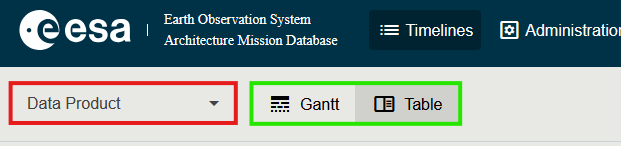
Subjects available in the Table view
Use the Subject dropdown (top-left) to choose the entity to list:
- Mission
- Payload (Instrument)
- Data Product
- ECV
- Space Program
- Project
- System
Clicking the Name in any row opens that element’s detail page.
Select columns
Use the Select columns dropdown in the toolbar to add or remove Parameter Value columns and other optional fields.
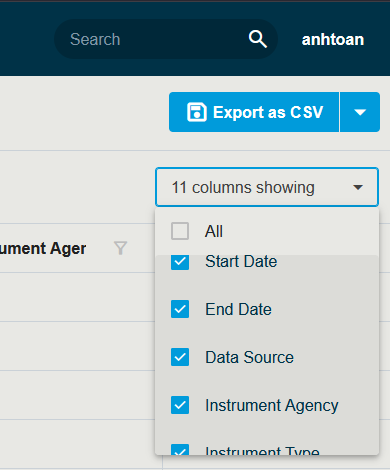
Available columns per subject
Name, Short Name and Definition are always available. The Name column is clickable and opens the element’s detail page. Additional columns include:
| Selected subject | Additional columns |
|---|---|
| Data Product | Data Product Level, Mission, ECV, Instrument, Parameter Types and values |
| ECV | Mission, Instruments, Data Products, Parameter Types and values |
| Mission | Instruments, Data Products, Start / End Date, Mission Phases, Parameter Types and values |
| Payload (Instrument) | Mission, Spectral Bands, Start / End Date, Parameter Types and values |
| Space Program | Missions, Projects, Start / End Date |
| Project | Missions, Project Phases, Start / End Date |
| System | Mission, Segment, Orbit Parameters, Start / End Date |
Filtering and sorting
Every column header exposes a sort indicator and a funnel icon.

Sorting
- Click the column header to sort ascending.
- Click again to sort descending.
- Click a third time to clear the sort.
Some computed columns (e.g. Categories) are not sortable.
Filtering
- Click the funnel icon to open the filter pop-up for the column.
- Pick an operator (
Contains,Equals,Starts with,In, …) and enter a value, then click Apply. - Click the funnel icon and choose Clear to remove the filter.
For multi-property filters that combine AND / OR, use the Add filter button in the toolbar instead — see Timelines → Filtering.
Pinning a column
When the table has many columns you can scroll horizontally. Pinning keeps a column visible while you scroll:
- Click the tack icon (red in the screenshot above) on the column header to pin the column.
- Click the tack again to unpin.
- The Name column is always pinned to the left.
Grouping
Drag a column header into the grouping area shown above the table to group rows by that column. Drag multiple columns for nested groups; drop a column back into the table area to remove it from the grouping.
Resetting the table
Click Reset View in the toolbar to clear all filters, sort orders, pinned columns and grouping in one click.
Export
The Export As… split-button exports the current selection to Excel. See Gantt → Export for details.