General Functionalities
Table of contents
Common Features Across the Application
All entity pages in EORSA-DB share a consistent set of features:
CRUD Operations
Every entity supports full Create, Read, Update, and Delete operations:
- Create: Click the blue + floating button at the bottom-right of any list view. A panel opens on the right for entering details.
- Read: Click on any entity name in a table to open its detail page.
- Update: On a detail page, click the Edit button to modify the entity.
- Delete: On a detail page, click the Delete button (with confirmation dialog).
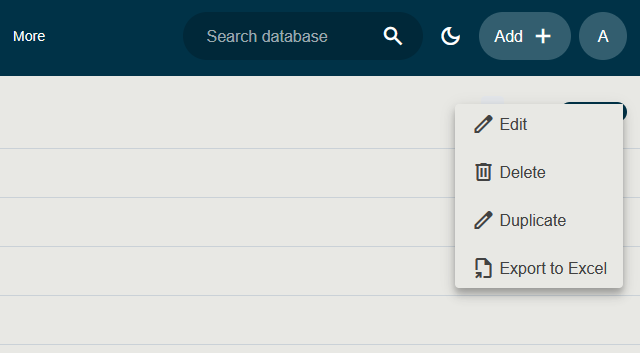
- Duplicate: On a detail page, click Duplicate to clone an existing entity.
- Export: Click the Export as … split-button to download the current view. CSV is the default; Excel (XLSX), SVG, PNG and JPEG are available from the dropdown menu.
Quick Add From the Header
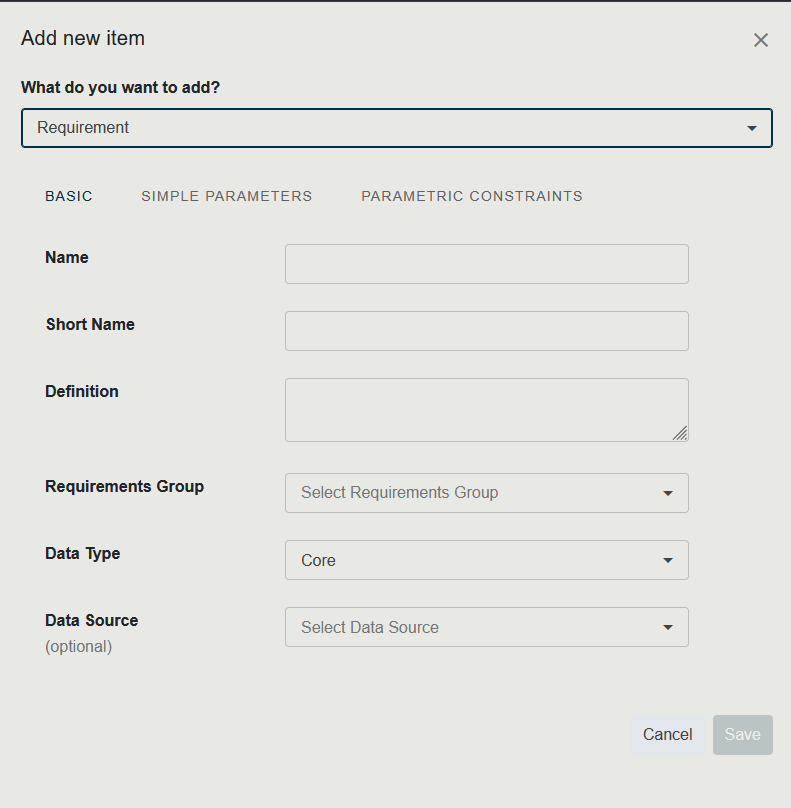
A shortcut for creating new items is available from any page. In the top header bar (visible to users with the AddCoreData permission), click the Add button (with the + icon) next to your user initials. A side panel titled Add new item opens on the right.
- From the What do you want to add? dropdown, choose the type of item to create. The available choices are: Mission, Space Program, Equipment (instrument), Requirement, ECV Requirement and Reference Scenario.
- The matching creation form appears below the dropdown.
- Fill in the form and click Save. The panel closes and the new item is added to the database.
This flow is the same as using the floating + button on the matching list page, but you can launch it from anywhere in the application.
Detail Pages
Each entity detail page follows a consistent layout:
- Primary Details Panel: Shows the entity’s core fields (Name, Short Name, Definition, dates, Data Type, etc.)
- Related Items Tables: Clickable tables showing related entities for navigation
- Sub-Detail Panel: A secondary panel for viewing related entity details
- Attachments: File attachments and illustrative images where applicable
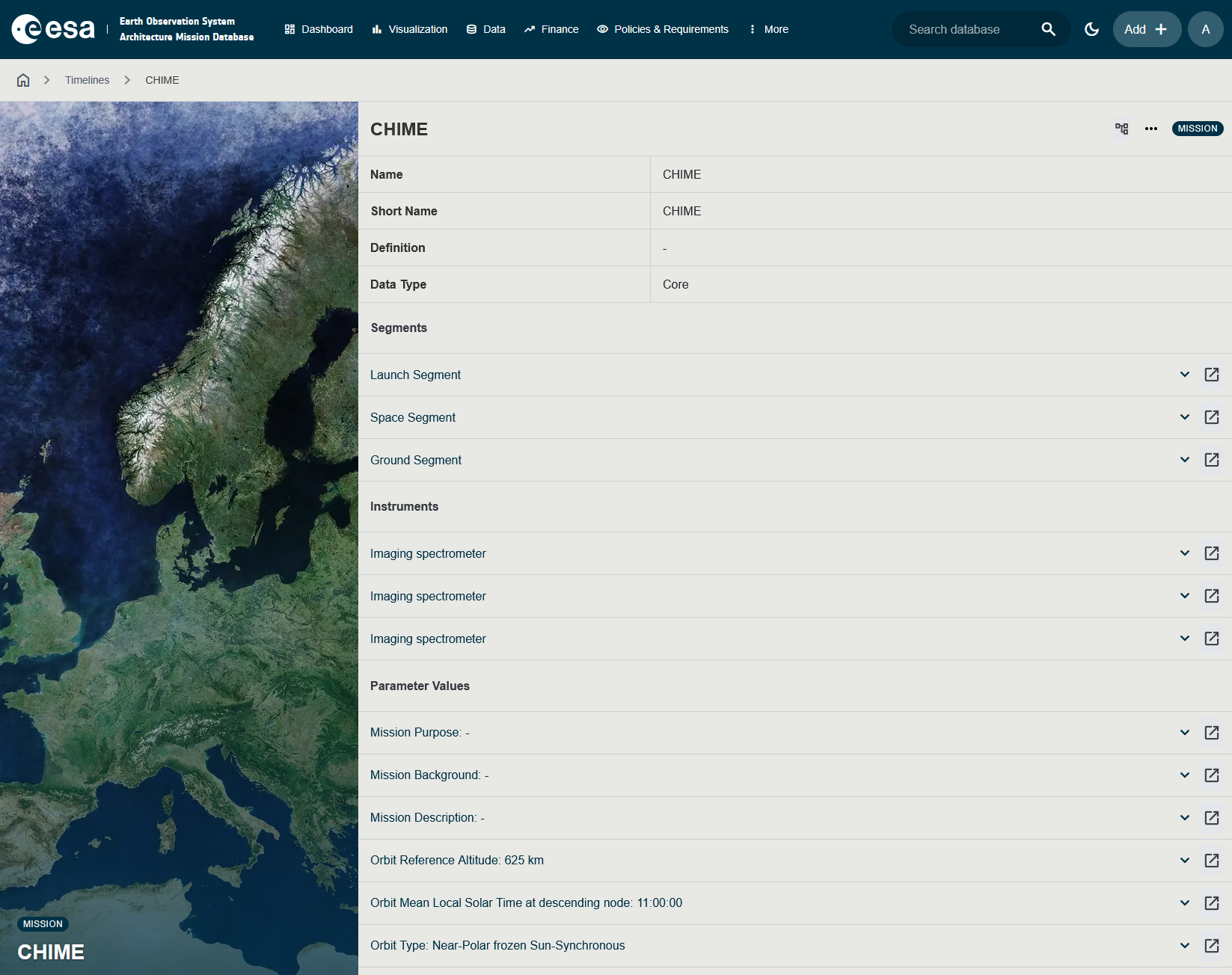
Table Features
All data tables support:
- Sorting: Click column headers to sort ascending/descending
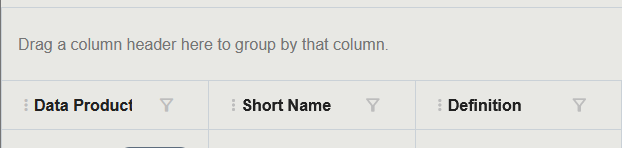
- Filtering: Click the funnel icon on any column header to filter
- Column Picking: Show/hide columns using the column selector dropdown
- Column Freezing: Pin columns so they remain visible when scrolling horizontally
- Column Resizing: Drag column borders to resize
- Column Reordering: Drag columns to reorder
- Grouping: Drag a column header to the grouping area
- Session Persistence: Table settings (column order, widths, filters, sort order, pinned columns) are stored in browser session storage and are preserved while the browser tab is open
Attachments and Images
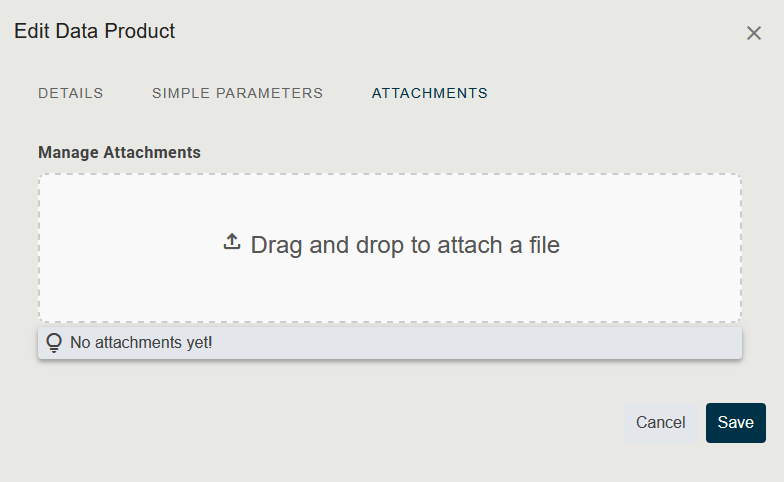
Entities that support file attachments show an Attachments section where you can:
- Upload new files (drag-and-drop or browse)
- View and download existing attachments
- Add illustrative images that are rendered inline on the detail page
Uploaded documents are indexed by the search service and can be found from the Search page.
How to upload a file
- Open the detail page of any entity that supports attachments (Missions, Payloads, Requirements, …).
- Scroll to the Attachments panel.
- Either drag one or more files onto the dashed Drag and drop to attach a file zone, or click inside the zone to open the file browser. Multiple files can be selected at once.
- While the file is uploading, a status message appears below the drop zone (for example, Uploading… or Upload complete).
- The new attachment appears in the list above the drop zone. From there you can download or remove it.
Uploaded files are indexed by the search service automatically. Their text content becomes findable from the Search page within a few seconds.
About Dialog
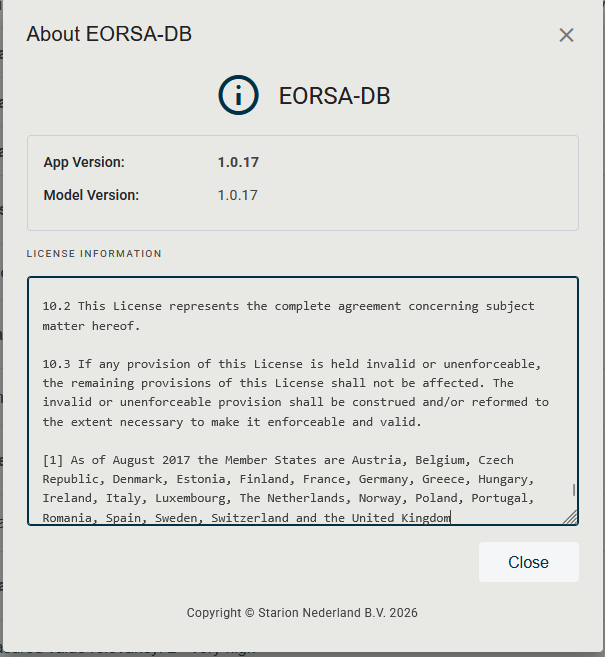
From the user menu (click your initials in the top-right), select About to open the Information page. The page shows two side-by-side panels with version, build, and credits information about the running application. To close it, navigate back using the browser back button or any menu entry.
Data Types and Permissions
Every parameterizable entity in EORSA-DB carries a Data Type that classifies the trustworthiness / scope of the record. The set of data types a user can see and create depends on their role:
| Data Type | Required permission to create | Required permission to read | Description |
|---|---|---|---|
| Core | AddCoreData | (always readable to authenticated users) | Official ESA reference data. |
| Non-Core | AddCoreData | (always readable) | Supplementary reference data from third parties. |
| Fictional (published what-if) | CreateLocalWhatIfScenarios then promotion | AccessPublishedWhatIfScenarios | Published what-if / planning scenarios. |
Local Fictional (FictionnalNotPublished) | CreateLocalWhatIfScenarios | (only the owning user) | Personal draft / what-if scenarios that have not yet been published. |
The Data Type filter that appears on the Timelines, Data and Filter Panel pages is automatically restricted to the data types the current user is authorised to view. Likewise, the Data Type dropdown in every Create / Edit panel only lists the values the user is allowed to assign.
Page-Level Permissions
Each top-level page is gated by a permission policy. Users without the required policy will not see the menu entry and direct navigation to the URL is blocked.
| Page | Required permission |
|---|---|
| Dashboard, Data, Timelines, Benchmarking, Policies & Requirements | AccessOtherDataButProgrammatics |
| Search | AccessOtherDataButProgrammatics |
| Financial | AccessProgrammaticData |
| Administration | ManageUsers |
| PG Admin (external) | ImportExportDatabase |
| User Administration (Keycloak, external) | ManageUsers |
Your effective roles and permissions can be inspected at any time from the Claims & Permissions page (click your initials in the top-right and select Claims & Permissions).