Policies and Requirement Application
Table of contents
Overview
The Policies and Requirements application manages the full requirements hierarchy: Requirement Specifications, Requirement Groups, Requirements, and ECV Requirements. It is accessible from the Policies & Requirements menu item in the topbar.
The page offers two views selected from a toggle bar at the top:
| View | Description |
|---|---|
| Requirements Table | A hierarchical Requirements Table that lets you expand and collapse the entire tree, filter, sort, and act on any node via a context menu. |
| Guiding Questions | A hierarchical table of Guiding Questions. Each Guiding Question can be expanded to show its linked ECV Requirements. Click any row to open its detail page. |
| Gap Analysis Dashboard | A dashboard visualisation showing ECV coverage across missions. A Colors button is available in this view to customise the colour coding. |

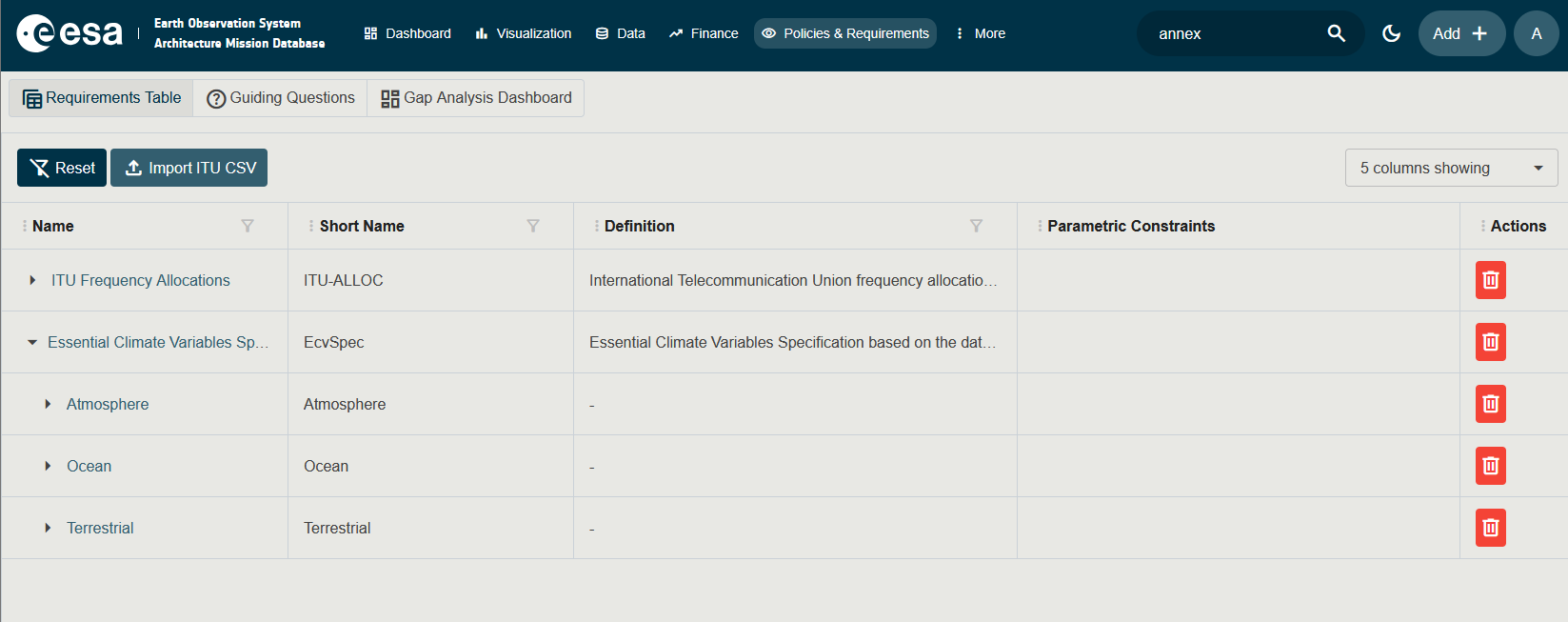
Requirements Hierarchy
Requirements are organised in a tree structure:
- Requirement Specification — The top-level document (e.g. a Mission Requirements Document). Belongs to a Mission.
- Requirement Group — A section or chapter within a specification. Groups can be nested inside other Groups.
- Requirement — An individual verifiable condition.
- ECV Requirement — A specialised requirement for Essential Climate Variable compliance, used by the Benchmarking tool.
Click the chevron in the first column to expand or collapse a node. Click on the Name of any node to open its detail page in the side pane.
Creating Elements
Three creation paths are available:
- The floating + button (bottom right) creates a new Requirement Specification.
- Right-click on any node in the Requirements Table to open a context menu. The menu offers Edit (open the matching edit dialog for the selected node) and the Add child options that are valid for the type of node you clicked. The valid child types are: a Requirement Group (under a Specification or another Group), a Requirement (under a Group) and an ECV Requirement (under a Group).
- The same actions are available from the Edit button on each detail page.
For the full step-by-step instructions, see Create an Element.
Importing ITU Frequency Allocations
The Requirements Table toolbar exposes an Import ITU CSV button (top of the table, next to Reset) that lets you bulk-import or update Requirements from an ITU (International Telecommunication Union) frequency-allocation CSV file.
- In the Requirements Table view, click Import ITU CSV. A dialog titled Import ITU Frequency Allocations opens.
- From the Target ITU Region dropdown, select the ITU region the file applies to (Region 1, Region 2 or Region 3).
- Drag your CSV file onto the Drag and drop the ITU CSV file here zone, or click the zone to browse for it. Only
.csvfiles are accepted. - While the file is processed, a progress bar is shown along with status messages. If something goes wrong, an error alert appears in red.
- When processing finishes, two tabs appear: Added lists the requirements that will be created, Edited lists the requirements that will be updated. Each tab shows a paged grid with Short Name, Name and Definition.
- Review the proposed changes. To abandon the import, click Cancel.
- To apply the changes, click Confirm Import. The dialog closes and the Requirements Table refreshes.

Detail Pages
- Requirement Specification — Owns Requirement Groups and is linked to a Mission.
- Requirement Group — Contains nested Groups, Requirements and ECV Requirements; can carry a Data Source and Categories.
- Requirement — Has a Definition, Data Type, Data Source, Categories, Parameter Values and Parametric Constraints.
- ECV Requirement — Same as Requirement plus a link to one or more Essential Climate Variables and a coverage threshold used during benchmarking.
Parametric Constraints
Requirements and ECV Requirements can carry Parametric Constraints — boolean expressions that are evaluated against the Parameter Values on Missions and their instruments by the Benchmarking tool.
The Boolean Expression Editor (opened from the Parametric Constraints tab of a Requirement detail page) lets you build complex constraints from:
- Relational expressions —
<parameter type> <operator> <value>where the operator is one of=,≠,<,≤,>,≥,in,not in. - Logical operators —
AND/OR, with support for arbitrarily nested sub-expressions. - Per-component checks — for compound parameter types each component can be checked individually.
The editor validates the expression in real time and shows the resulting boolean tree.
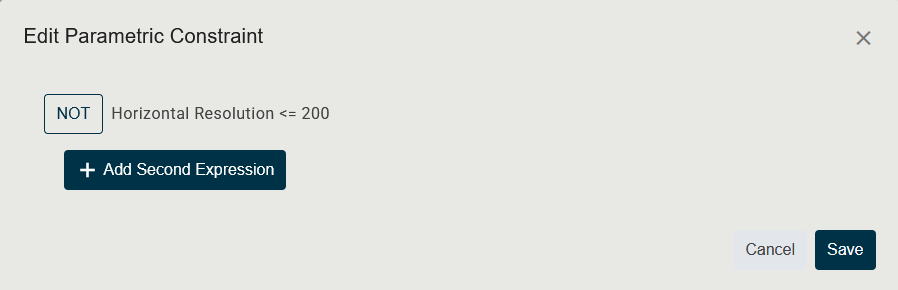
A Parametric Constraint reads the Parameter Values attached to the Missions and instruments selected in the Benchmarking tool. For an end-to-end walkthrough — defining a Parameter Type, attaching a Parameter Value, writing a constraint and reading the benchmark result — see the Worked Example.