PG Admin
Table of contents
Overview
PG Admin is the web-based PostgreSQL administration interface integrated with EORSA-DB. It provides direct access to the underlying PostgreSQL database and is intended for database administrators who need to inspect data, run SQL queries, perform imports/exports, or troubleshoot database issues.
Access to PG Admin is restricted to users with the ImportExportDatabase permission, which is granted to the Administrator and EditorUser roles.
PG Admin is an external tool — it opens in a new browser tab outside the main EORSA-DB application. Authentication is handled automatically through Keycloak using the same account you are logged in with.
Accessing PG Admin
-
Log in to EORSA-DB with an account that has the Administrator or EditorUser role.
-
Click PG Admin in the top navigation bar. The link is only visible to users with the
ImportExportDatabasepermission. -
A new browser tab opens and you are automatically authenticated via Keycloak (OAuth2/OIDC).
If your session has expired you may be redirected to the Keycloak login page first.
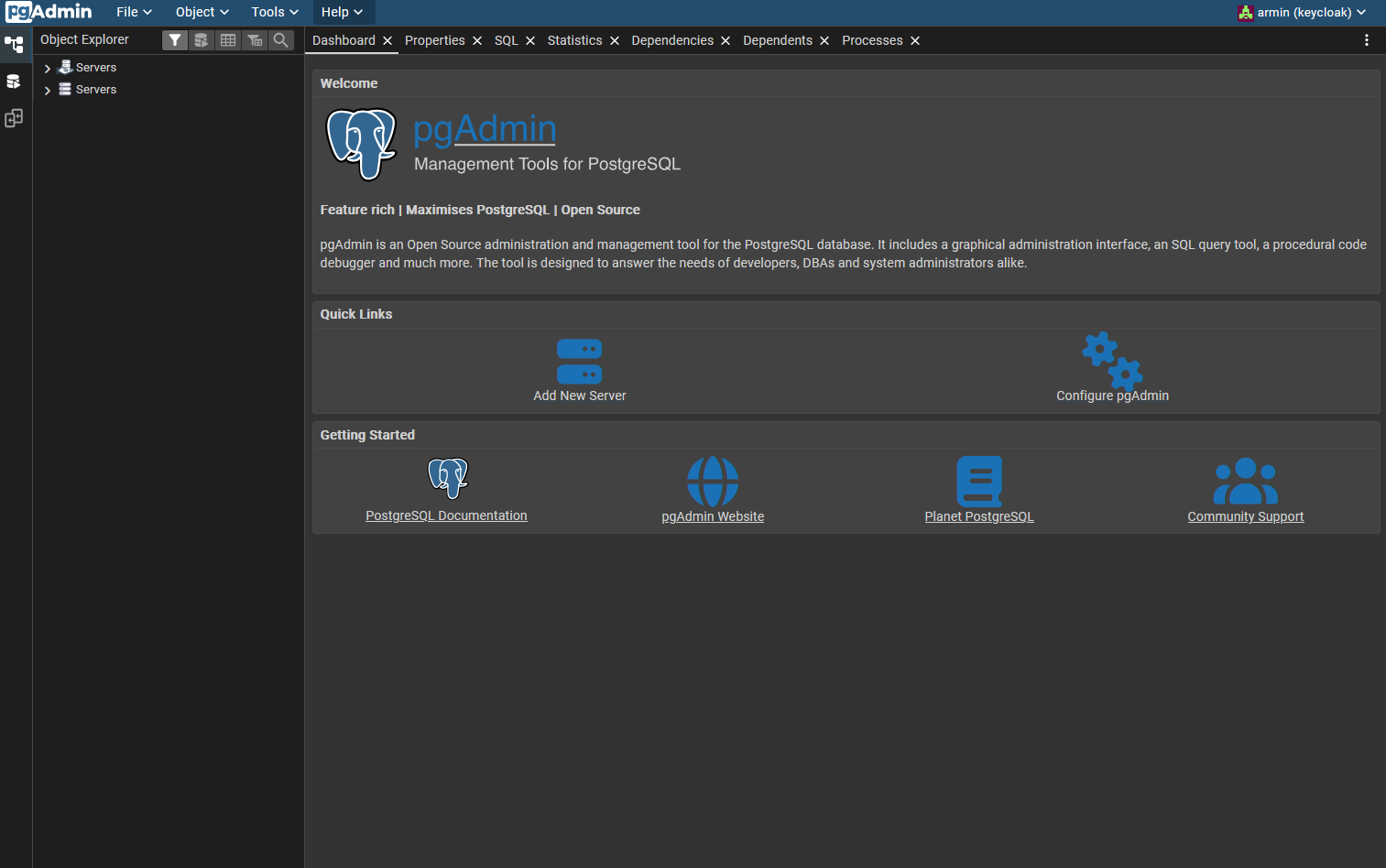
Pre-configured Server Connection
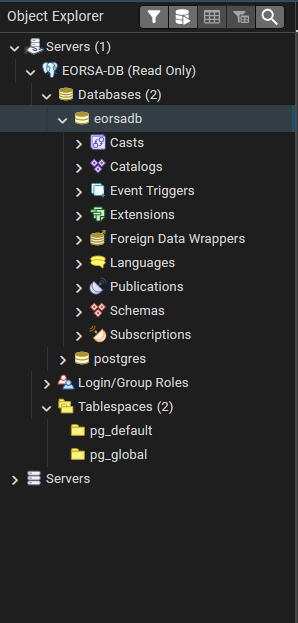
When you first open PG Admin you will see a pre-configured server called EORSA-DB (Read Only) in the left-hand Object Explorer panel. This server connects to:
| Setting | Value |
|---|---|
| Host | eorsadb-db (internal hostname) |
| Port | 5432 |
| Database | eorsadb |
| Username | pgadmin_readonly (shared read-only account) |
The pre-configured connection uses a read-only PostgreSQL account. You can browse tables and execute SELECT queries, but INSERT, UPDATE, DELETE and DDL statements will be refused unless you connect with a more privileged account.
Browsing Tables
-
In the Object Explorer (left panel), expand EORSA-DB (Read Only) → Databases → eorsadb → Schemas → public → Tables.
-
Right-click a table and select View/Edit Data → All Rows to see the full contents of the table.
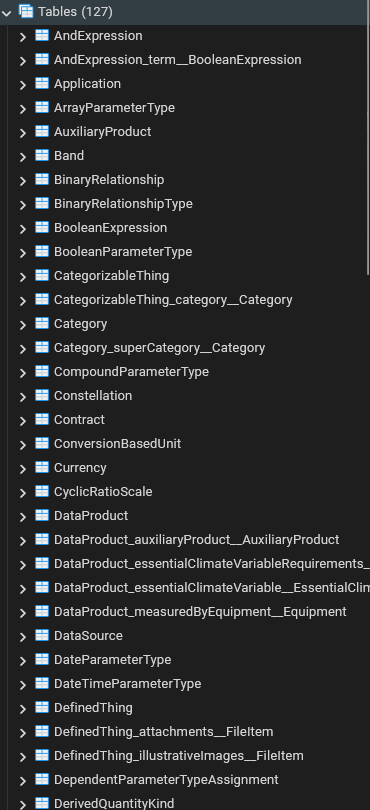
- The data grid opens in the main panel. You can:
- Scroll through rows.
- Click column headers to sort.
- Use the filter toolbar to search for specific values.
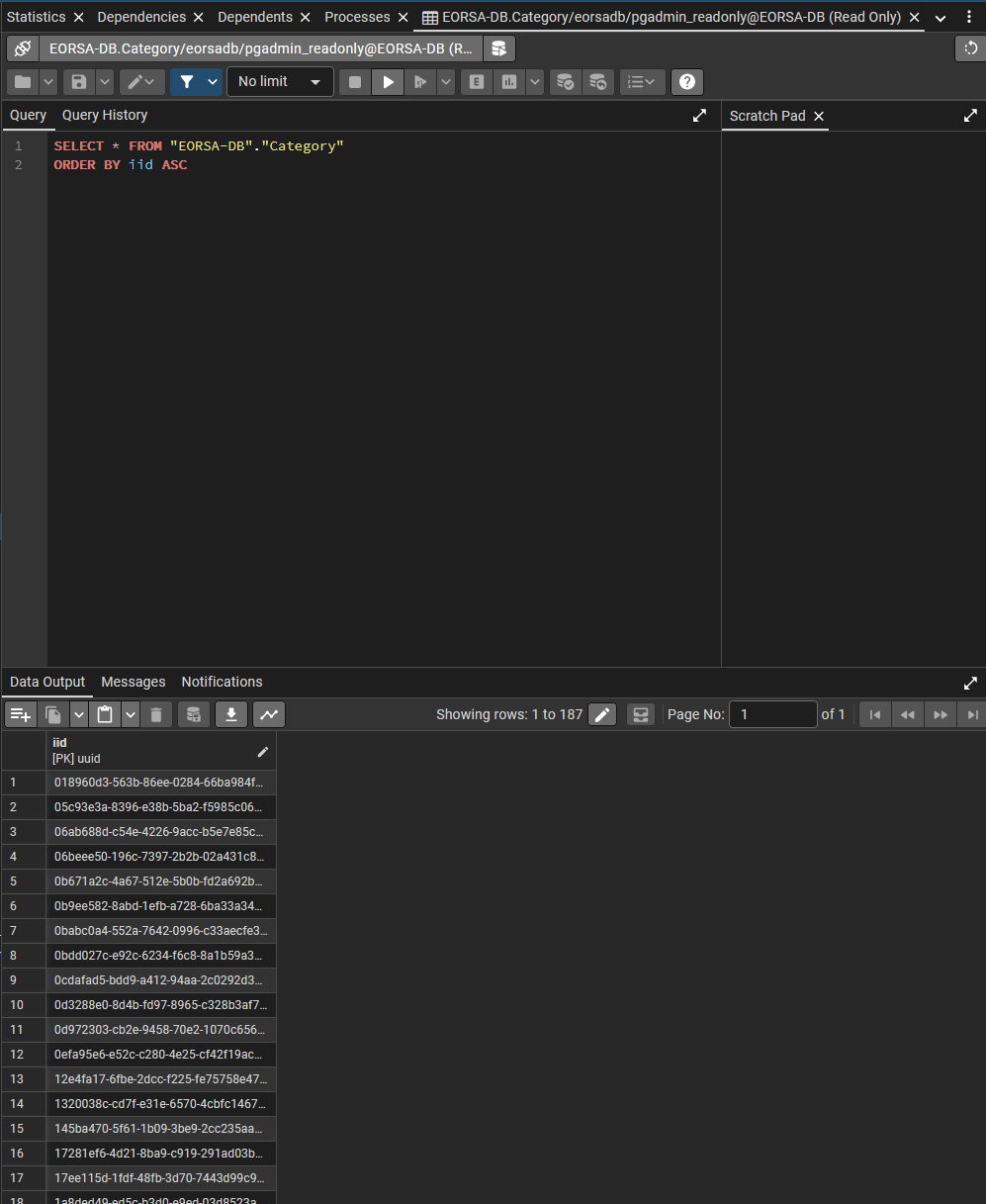
Running SQL Queries
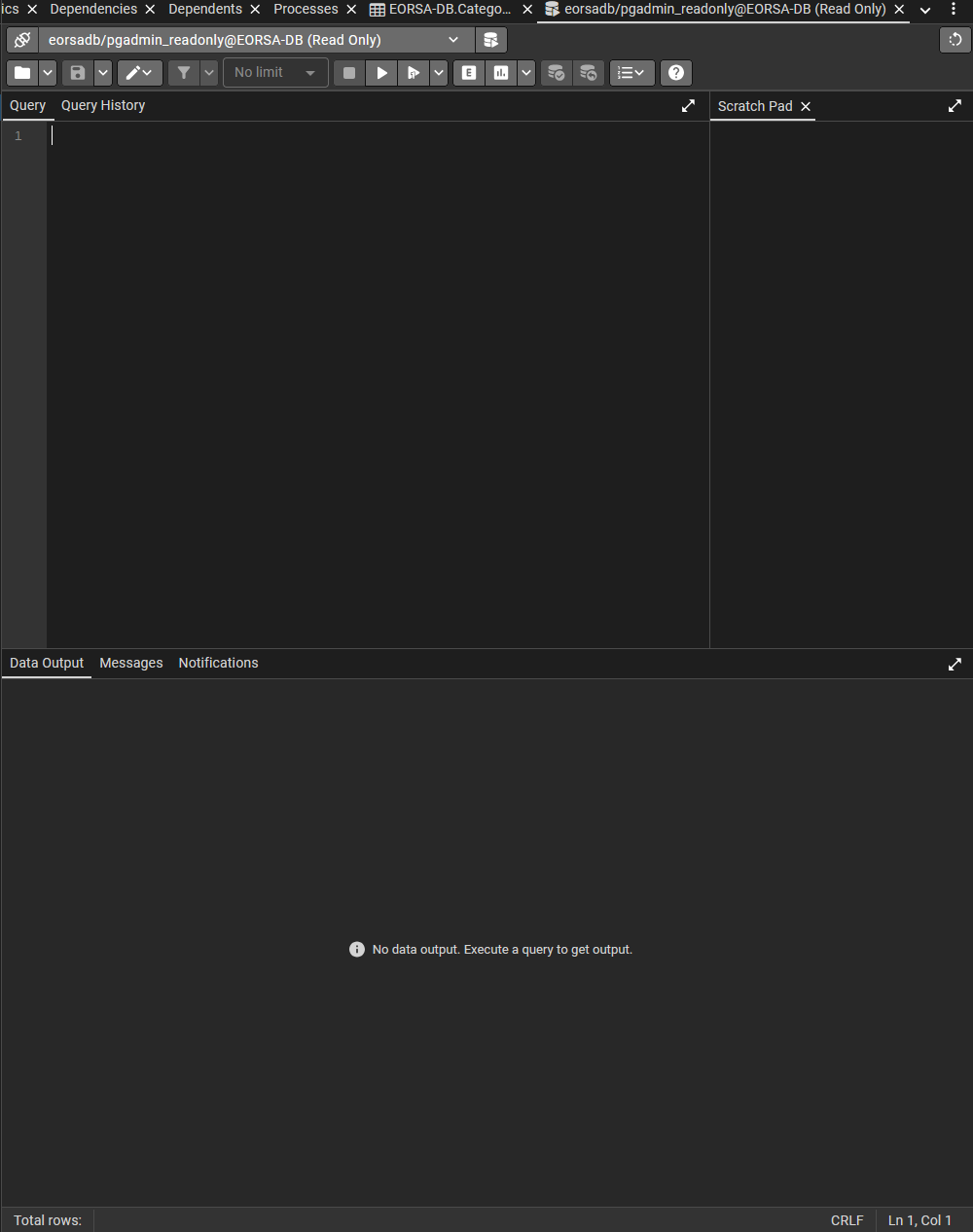
- In the Object Explorer, right-click the eorsadb database and select Query Tool.
-
Type your SQL query in the editor pane. Example:
SELECT t.iid, t.data->>'name' AS name, t.data->>'shortName' AS short_name FROM "EORSA-DB"."Thing" t WHERE t."classKind" = 'Mission' ORDER BY t.data->>'name' LIMIT 50; -
Press F5 or click the Execute / Refresh button (▶) to run the query.
-
Results appear in the Data Output tab at the bottom.
With the read-only connection, only SELECT statements (and read-only functions) will succeed. Use a privileged database account if you need to write data.
Predefined Queries
The PG Admin image ships with a set of ready-to-use SQL query files. They are available in the Shared Queries storage folder and cover the most common data-access tasks.
Accessing the Query Files
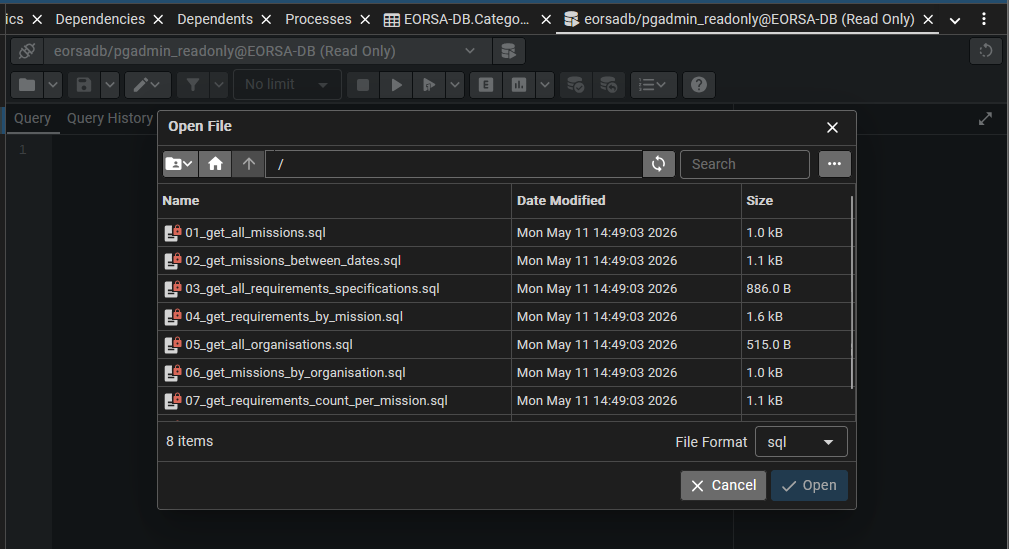
- In the Query Tool toolbar, click the Open File button (folder icon) or press Ctrl+O.
- In the file browser that opens, navigate to Shared Queries → queries.
- Select the
.sqlfile you want to run and click Open. - The query loads into the editor. Adjust any placeholder values where indicated (marked with
'YOUR_...'), then press F5 to execute.
Available Queries
| File | Description |
|---|---|
01_get_all_missions.sql | All missions with name, short name, description, start/end dates, and parent space program. |
02_get_missions_between_dates.sql | Missions whose operational window overlaps a date range. Edit the two date literals in the WHERE clause. |
03_get_all_requirements_specifications.sql | All requirements specifications and their linked mission. |
04_get_requirements_by_mission.sql | All requirements under every specification linked to a given mission. Replace 'YOUR_MISSION_SHORT_NAME'. |
05_get_all_organisations.sql | All organisations stored in the database. |
06_get_missions_by_organisation.sql | Missions associated with a specific organisation. Replace 'ESA' with the target short name. |
07_get_requirements_count_per_mission.sql | Requirement count per mission, broken down by specification. |
08_get_data_products_by_mission.sql | Data products for a given mission. Replace 'ALOS-2' with the target short name. |
Database Schema Notes
The EORSA-DB PostgreSQL database stores all domain objects in a single table called "Thing" inside the "EORSA-DB" schema. Each row has:
| Column | Type | Description |
|---|---|---|
iid | uuid | Unique identifier |
classKind | varchar | Object type (e.g. Mission, Requirement, Organisation) |
data | jsonb | All other attributes as JSON |
Key data fields you will encounter:
| Field | Example value | Notes |
|---|---|---|
name | "Sentinel-1A" | Full display name |
shortName | "S1A" | Abbreviated name — used in filter queries |
definition | "SAR mission …" | Free-text description |
startDate | "2014-04-03T…" | ISO 8601 timestamp |
endDate | "2024-12-31T…" | ISO 8601 timestamp |
dataType | "NonCore" | Data classification |
isFailed | false | Mission failure flag |
Use the ->> operator to extract a field as text, e.g. t.data->>'name', or cast it explicitly:
-- Filter missions that started after 2010
WHERE (t.data->>'startDate')::timestamptz > '2010-01-01'
Exporting Data to CSV
-
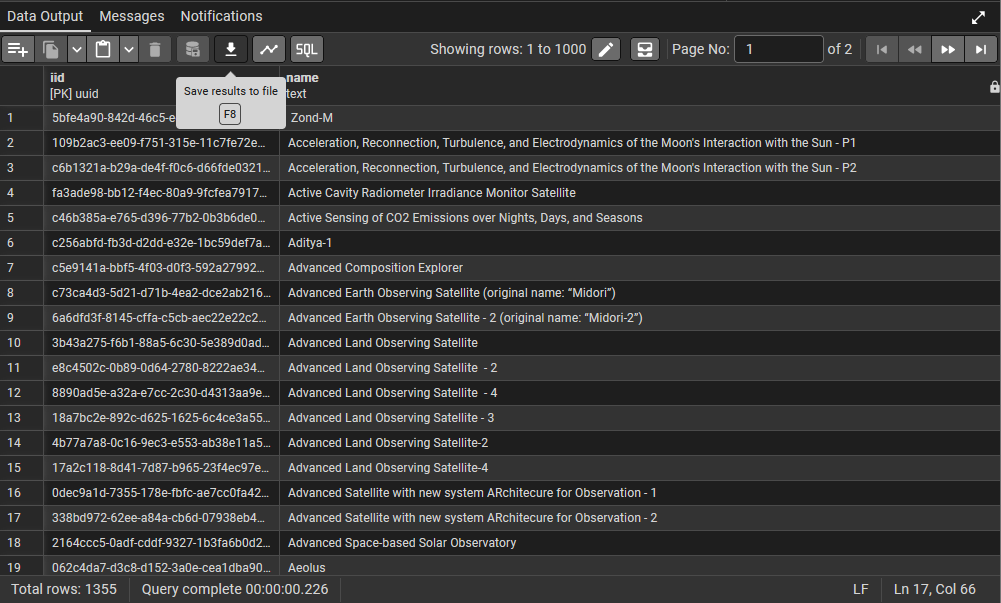
Open the Query Tool and run the desired
SELECTquery. -
Once the results are displayed, click the Download as CSV button (cloud/arrow icon) in the results toolbar.
-
Save the file to your local machine.
Backup and Restore
PG Admin provides a graphical interface to the pg_dump / pg_restore utilities.
Creating a Backup
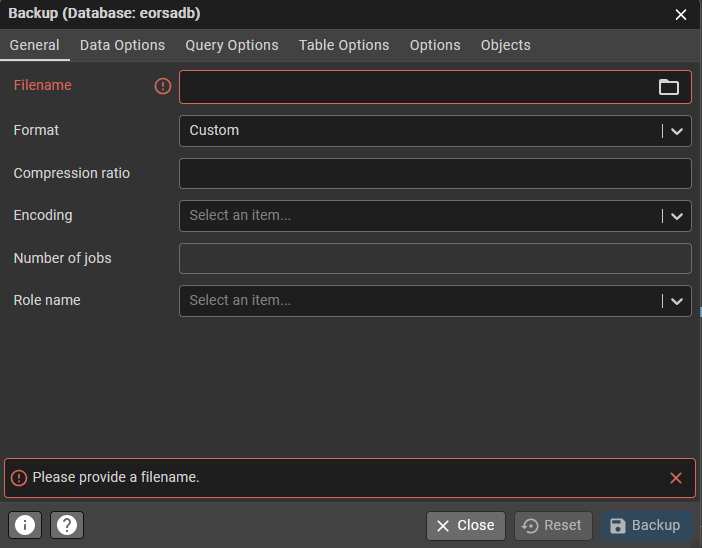
- Right-click the eorsadb database in the Object Explorer.
- Select Backup….
- Choose the output file path, format (Custom, Plain, Tar, or Directory), and desired options (schema only, data only, etc.).
- Click Backup to start the operation.
Restoring a Backup
- Right-click the target database and select Restore….
- Select the backup file.
- Configure options as required.
- Click Restore.
Restoring a backup will overwrite existing data. Always verify the target database before starting a restore operation.
PG Admin Access Levels
PG Admin uses its own role mapping, driven by the Keycloak roles described in Roles and Permissions:
| Keycloak Role | PG Admin Level | Capabilities |
|---|---|---|
pgadmin-superuser | Administrator | Full PG Admin access: manage users, add server connections, execute any SQL. |
pgadmin-user | User | Standard access with the pre-configured read-only server connection. |
An EORSA-DB Administrator is automatically granted pgadmin-superuser. All other users who can reach PG Admin (i.e. EditorUser) are granted pgadmin-user.
Troubleshooting
| Symptom | Likely cause | Resolution |
|---|---|---|
| PG Admin link not visible | Account lacks ImportExportDatabase permission. | Ask your Administrator to assign the EditorUser or Administrator role in Keycloak. |
| Authentication error on PG Admin login | Keycloak session expired or cookie issue. | Log out of EORSA-DB, log back in, then click the PG Admin link again. |
| Connection refused on EORSA-DB (Read Only) server | Database container not running or unreachable. | Contact the system administrator to verify the eorsadb-db container is healthy. |
| Permission denied when editing data | Using the read-only pgadmin_readonly account. | Contact the system administrator for a write-capable connection. |