Roles and Permissions
Table of contents
Overview
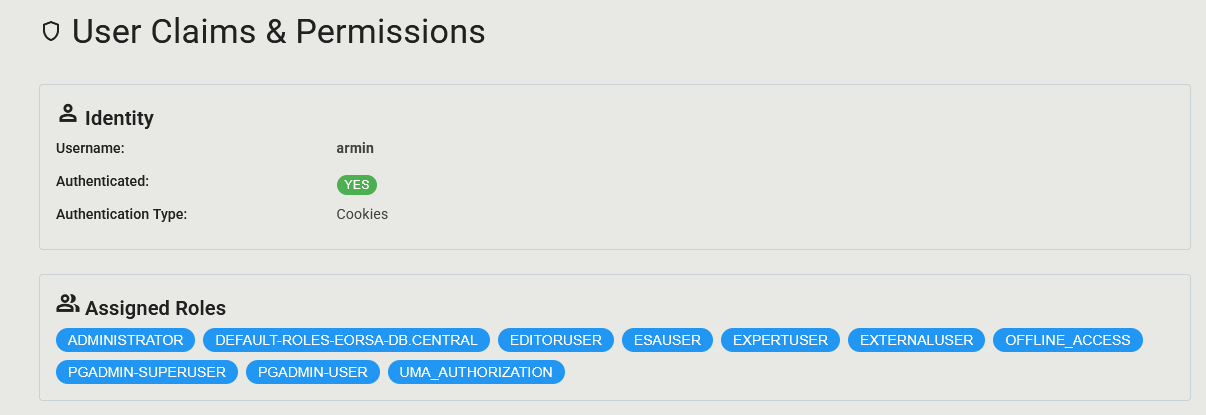
EORSA-DB uses a role-based access control model built on top of Keycloak. A user is assigned one or more roles in the Keycloak console; the application derives a set of permissions from those roles at login time.
Roles and permissions are completely managed in Keycloak — no changes are needed in the web application itself.
Application Roles
The following roles are defined in the eorsa-db realm. Each role carries a fixed set of permissions; a user with multiple roles receives the union of all permissions granted by those roles.
| Role | Description |
|---|---|
| Administrator | Full access: can add users, change user rights, block accounts, add and modify core data, import/export the database, approve publication of what-if scenarios, query the database, access all data (including programmatic), create local what-if scenarios, and access published what-if scenarios. Also granted pgadmin-superuser access to PG Admin. |
| EditorUser | Can add and modify core data, import/export the database, approve publication of what-if scenarios, query the database, access non-programmatic data, and access published what-if scenarios. |
| ExpertUser | Can add and modify core data, query the database, access non-programmatic data, and access published what-if scenarios. |
| ProgrammaticsManager | Can access programmatic (financial) data and all other non-programmatic data. Can also access published what-if scenarios. |
| ESAUser | Read-only access to all non-programmatic data. Can create local (unpublished) what-if scenarios and access published what-if scenarios. |
| ExternalUser | Read-only access to non-programmatic data. Cannot access what-if scenarios of any kind. |
Permission Reference
The table below lists every permission used by the application, its effect, and which roles carry it.
| Permission | Effect | Roles |
|---|---|---|
AccessOtherDataButProgrammatics | Read access to Dashboard, Data, Timelines, Benchmarking and Policies & Requirements. Required by nearly all pages. | Administrator, EditorUser, ExpertUser, ProgrammaticsManager, ESAUser, ExternalUser |
AccessProgrammaticData | Read access to the Financial page and programmatic / budget-related data. | Administrator, ProgrammaticsManager |
AddCoreData | Permission to create Core and Non-Core entities; enables the floating + button and the Add action in dialogs. | Administrator, EditorUser, ExpertUser |
ModifyCoreData | Permission to edit and delete existing Core and Non-Core entities. | Administrator, EditorUser, ExpertUser |
ImportExportDatabase | Bulk import / export of the database and access to the PG Admin console link. | Administrator, EditorUser |
QueryDatabase | Access to the Search page; required to perform full-text searches. Also required to run Reference Scenarios. | Administrator, EditorUser, ExpertUser |
ManageUsers | Access to the Administration page (Categories, Parameter Types, Organisations) and to the User Administration (Keycloak) external link. | Administrator |
ApprovePublicationOfWhatIfScenarios | Can promote a local what-if scenario to a published (publicly visible) scenario. | Administrator, EditorUser |
CreateLocalWhatIfScenarios | Can create local (unpublished) what-if / fictional entities visible only to the owning user. | Administrator, ESAUser |
AccessPublishedWhatIfScenarios | Can read entities whose Data Type is Fictional (published what-if scenarios). | Administrator, EditorUser, ExpertUser, ProgrammaticsManager, ESAUser |
Role × Permission Matrix
The table below shows at a glance which permissions each role carries (✓ = granted, — = not granted).
| Permission | Administrator | EditorUser | ExpertUser | ProgrammaticsManager | ESAUser | ExternalUser |
|---|---|---|---|---|---|---|
AccessOtherDataButProgrammatics | ✓ | ✓ | ✓ | ✓ | ✓ | ✓ |
AccessProgrammaticData | ✓ | — | — | ✓ | — | — |
AddCoreData | ✓ | ✓ | ✓ | — | — | — |
ModifyCoreData | ✓ | ✓ | ✓ | — | — | — |
ImportExportDatabase | ✓ | ✓ | — | — | — | — |
QueryDatabase | ✓ | ✓ | ✓ | — | — | — |
ManageUsers | ✓ | — | — | — | — | — |
ApprovePublicationOfWhatIfScenarios | ✓ | ✓ | — | — | — | — |
CreateLocalWhatIfScenarios | ✓ | — | — | — | ✓ | — |
AccessPublishedWhatIfScenarios | ✓ | ✓ | ✓ | ✓ | ✓ | — |
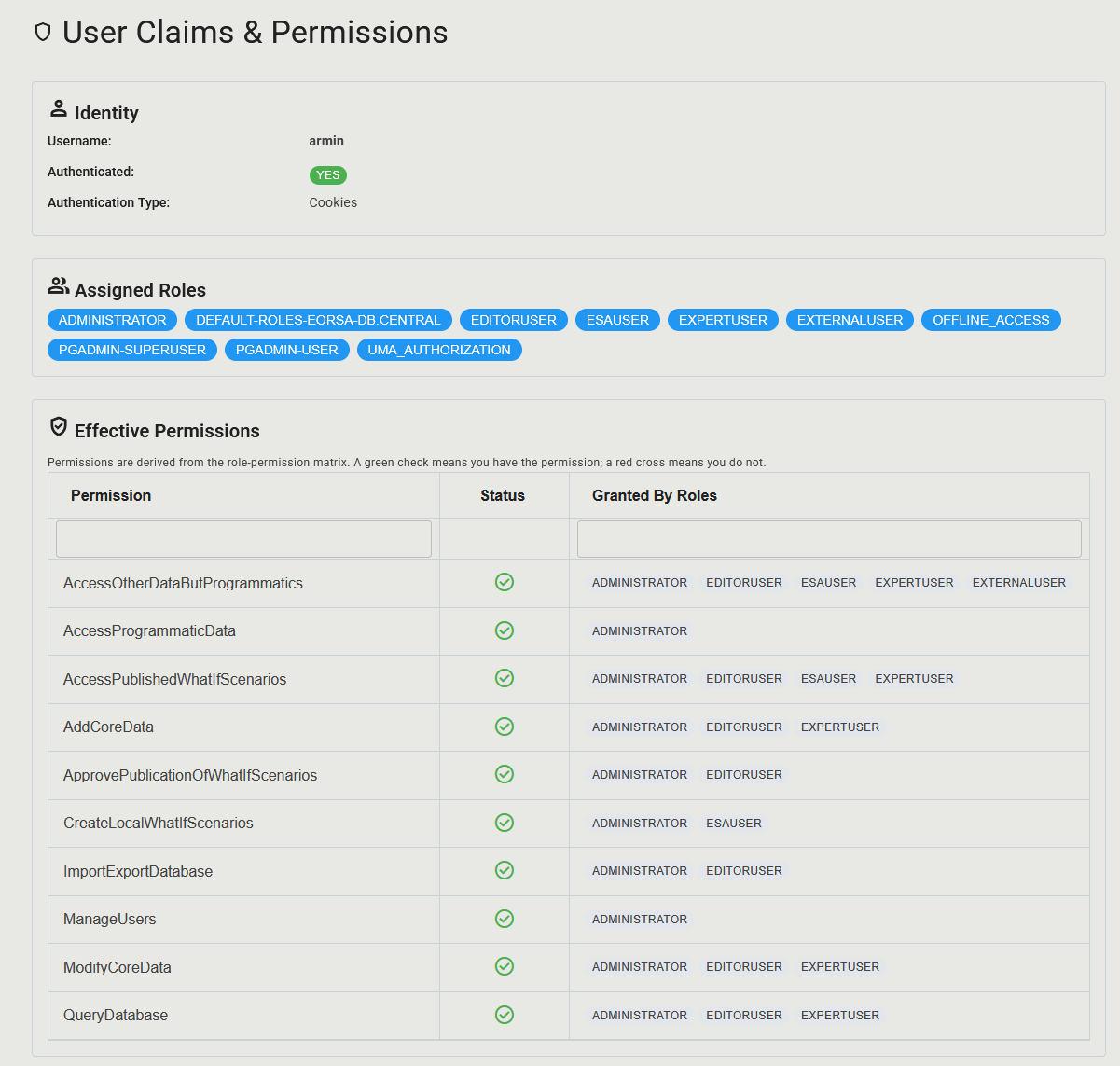
The effective permissions for any logged-in user can be verified at any time on the Claims & Permissions page (click your initials in the top-right, then select Claims & Permissions). The Effective Permissions card displays the full matrix for your current session.
PG Admin Roles
PG Admin uses a separate Keycloak client (pgadmin-client) and maps Keycloak realm roles to PG Admin roles:
| Keycloak Realm Role | PG Admin Role | Description |
|---|---|---|
pgadmin-superuser | Administrator | Full administrative access inside PG Admin (all databases, server configuration). The EORSA-DB Administrator role automatically receives this Keycloak role. |
pgadmin-user | User | Standard PG Admin user. Can access the pre-configured EORSA-DB (Read Only) server connection. |
The pgadmin-superuser and pgadmin-user Keycloak roles are assigned independently of the EORSA-DB application roles. An Administrator user in the application receives pgadmin-superuser by default; all other users receive pgadmin-user.
Viewing Your Own Permissions
- Click on your initials in the top-right corner of the application.
- Select Claims & Permissions.
- The Assigned Roles card shows the Keycloak roles currently mapped to your account.
- The Effective Permissions card lists all permissions derived from those roles. A green check indicates the permission is granted; a red cross indicates it is not.
See also Settings and Permissions for detailed instructions.