Two-Line Element (TLE)
Table of contents
Overview
A Two-Line Element set (TLE) is a standardised NASA/NORAD data format that describes the orbital parameters of a satellite at a specific epoch. In EORSA-DB, each System (satellite) can have one associated TLE record used to document its current orbit and enable integration with external orbital simulation software.
The TLE record has two fields:
| Field | Description |
|---|---|
| Catalog Number | The NORAD/COSPAR satellite catalog number (integer). Uniquely identifies the object in space surveillance catalogs. |
| Current Value | The full two-line element string — two lines of exactly 69 characters each, as issued by Space-Track.org or Celestrak. |
Viewing the TLE
- Open the Data page and select System in the subject dropdown.
- Click on a system row to open its detail page.
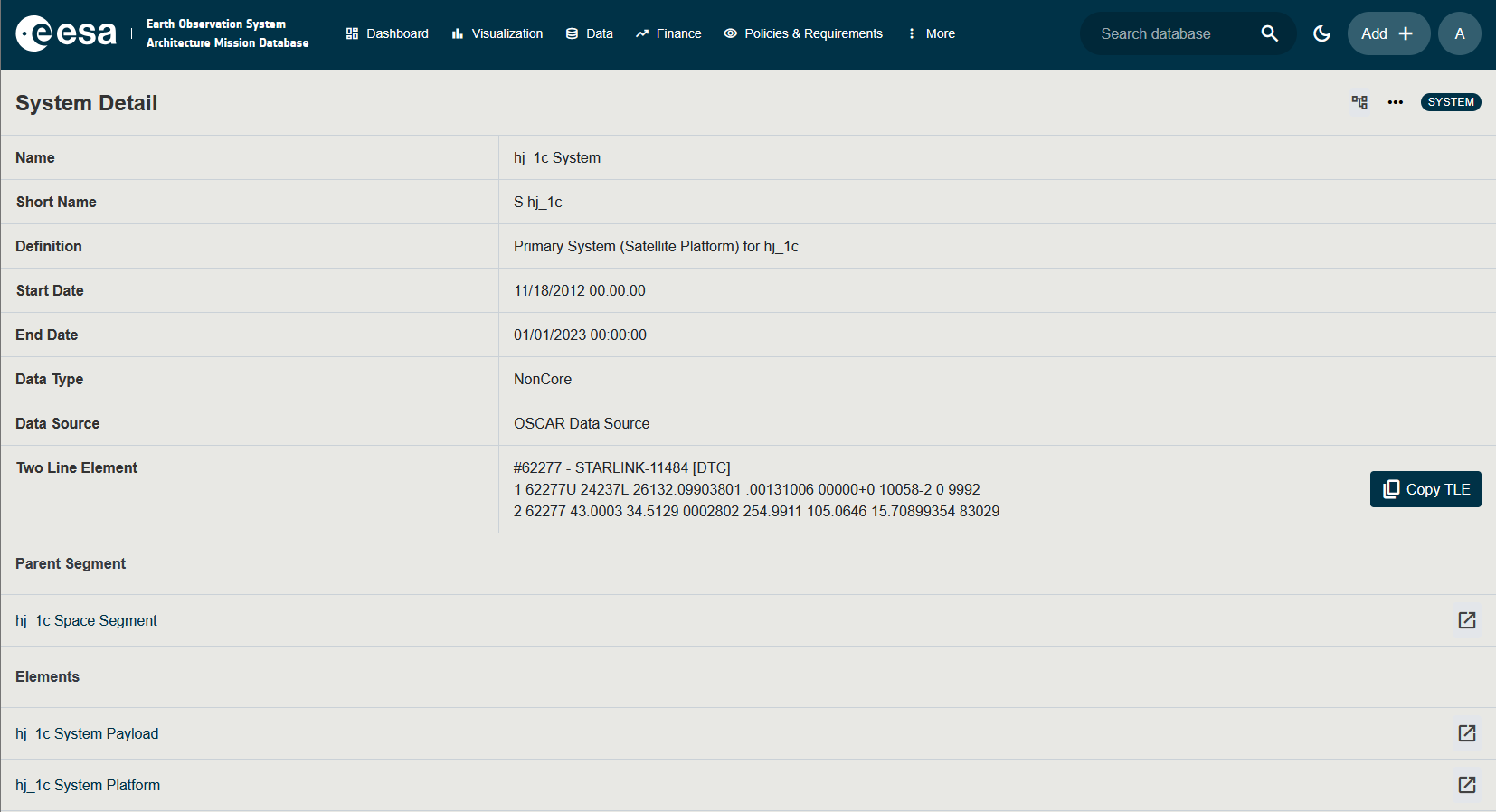
- Scroll to the Two-Line Element section.
The section displays the current Catalog Number and the two-line string.
Modifying the TLE
Modifying a TLE requires the ModifyCoreData permission.
- Open the system’s detail page (see Viewing the TLE above).
- In the Two-Line Element section, click the Edit button (pencil icon).
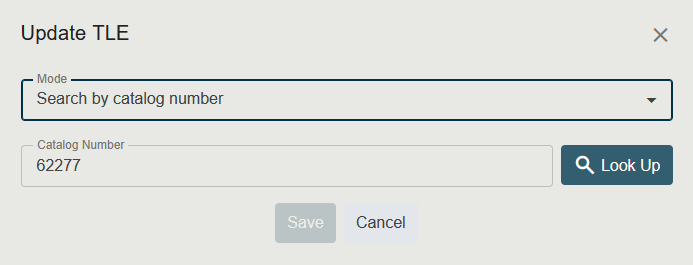
- The TLE Reference Dialog opens. Choose a retrieval mode:
- Name — search CelesTrak by satellite name and select from results.
- Catalog Number — look up by NORAD number directly from CelesTrak.
- Manual — enter the catalog number and TLE text by hand.
- Click Save to confirm the changes.
See Retrieving a TLE from CelesTrak for full details on each mode.
Retrieving a TLE from CelesTrak
EORSA-DB includes a built-in integration with the CelesTrak GP data API. When editing a TLE, the application can automatically fetch the latest orbital data for a satellite — no external login or manual copy-paste required.
When you click Edit (or Add) on the TLE section of a System, a dialog opens with three modes:
Mode 1 — Search by Satellite Name
Use this mode if you know the satellite’s name but not its NORAD catalog number.
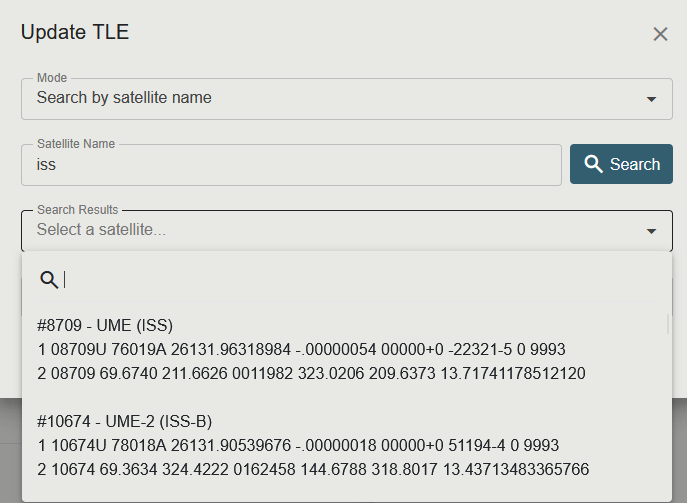
- Select Name in the Mode dropdown.
- Type the full or partial satellite name in the Satellite Name field (e.g.,
Sentinel-3A). - Click Search. The app queries CelesTrak and returns a list of matching satellites.
- Select the correct satellite from the Search Results dropdown.
- The Catalog Number and TLE content are populated automatically.
- Click Save (or Add).
Mode 2 — Look Up by Catalog Number
Use this mode if you already know the satellite’s NORAD catalog number.
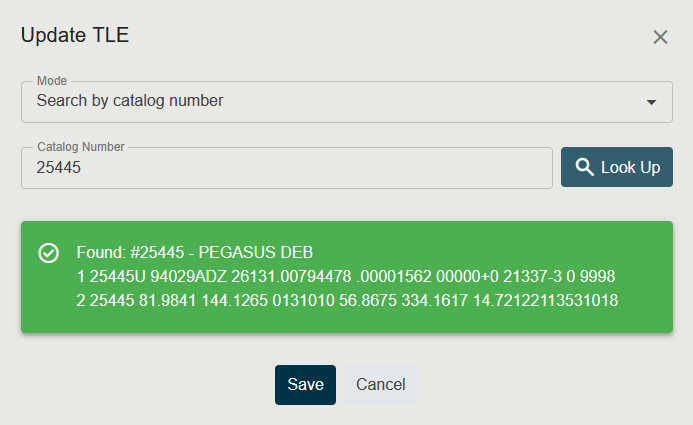
- Select Catalog Number in the Mode dropdown.
- Enter the NORAD catalog number in the Catalog Number field (e.g.,
39634for Sentinel-3A). - Click Look Up. The app queries CelesTrak and displays the found record.
- If found, a success banner shows the satellite name and TLE preview.
- If not found, a warning banner indicates no record exists for that number.
- Click Save (or Add).
Mode 3 — Manual Entry
Use this mode to enter TLE data manually (e.g., from a different catalog source).
- Select Manual in the Mode dropdown.
- Enter the Catalog Number (integer).
- Paste the TLE text into the TLE Content field.
- Click Save (or Add).
A valid TLE consists of exactly two lines of 69 characters each (lines 1 and 2). Do not include the name line (line 0) in the TLE Content field.
Exporting / Copying the TLE
To use the stored TLE in external orbital simulation software (e.g., STK, GMAT, Orekit):
- Open the system’s detail page.
- Navigate to the Two-Line Element section.
- Click on the Current Value text to select it, then copy it to the clipboard.
- Paste it into the external software’s TLE input field.
The TLE Current Value is a plain-text two-line string compatible with any tool that accepts the standard NORAD/NASA TLE format.
Permissions Summary
| Action | Required Permission |
|---|---|
| View TLE | AccessOtherDataButProgrammatics |
| Edit TLE | ModifyCoreData |