Navigating the System Tree
Table of contents
Overview
EORSA-DB structures every Earth Observation mission as a hierarchical system tree. Understanding this hierarchy is essential for navigating mission architectures, locating instruments, and making sense of how costs and requirements are attached to specific elements.
The System Hierarchy
Space Program
└── Mission
    ├── Segment  (Space | Ground | Launch)
    │   └── System  (individual satellite / station / facility)
    │       ├── Payload  (instrument / sensor)
    │       │   ├── Child Payloads  (sub-instruments)
    │       │   ├── Spectral Bands
    │       │   ├── Equipment
    │       │   └── SubSystem
    │       └── Platform  (spacecraft bus / ground facility)
    │           ├── Equipment
    │           └── SubSystem
    ├── Data Products
    └── Mission Phases ── Milestone
| Level | Description |
|---|---|
| Space Program | Top-level grouping (e.g., Copernicus, ESA Earth Explorers). Contains one or more Missions. |
| Mission | An individual space mission (e.g., Sentinel-3). Belongs to a Space Program. Contains Segments, Data Products and Mission Phases. |
| Segment | A major subsection of the mission: Space Segment (the satellite), Ground Segment (control/reception stations), or Launch Segment. Belongs to one Mission. |
| System | A single physical entity within a Segment — a satellite, a ground station, or a launch vehicle. May have orbital parameters (TLE) and a start/end date. Contains Payloads and Platforms (shown together as Elements in the UI). |
| Payload | The scientific instrument or sensor on board the System. May contain Child Payloads (sub-instruments), Spectral Bands, Equipment and SubSystems. |
| Platform | The spacecraft bus or infrastructure part of the System. Contains Equipment and SubSystems. |
| SubSystem | A technical component of a Payload or Platform (e.g., thermal control, power supply). |
Browsing the System Tree in the Data Application
The most direct way to navigate the system tree is via the Data page.
Step 1 — Open the Data page
Click Data in the top navigation bar.
Step 2 — Select the Mission subject
In the subject dropdown, select Mission. The grid lists all missions in the database.
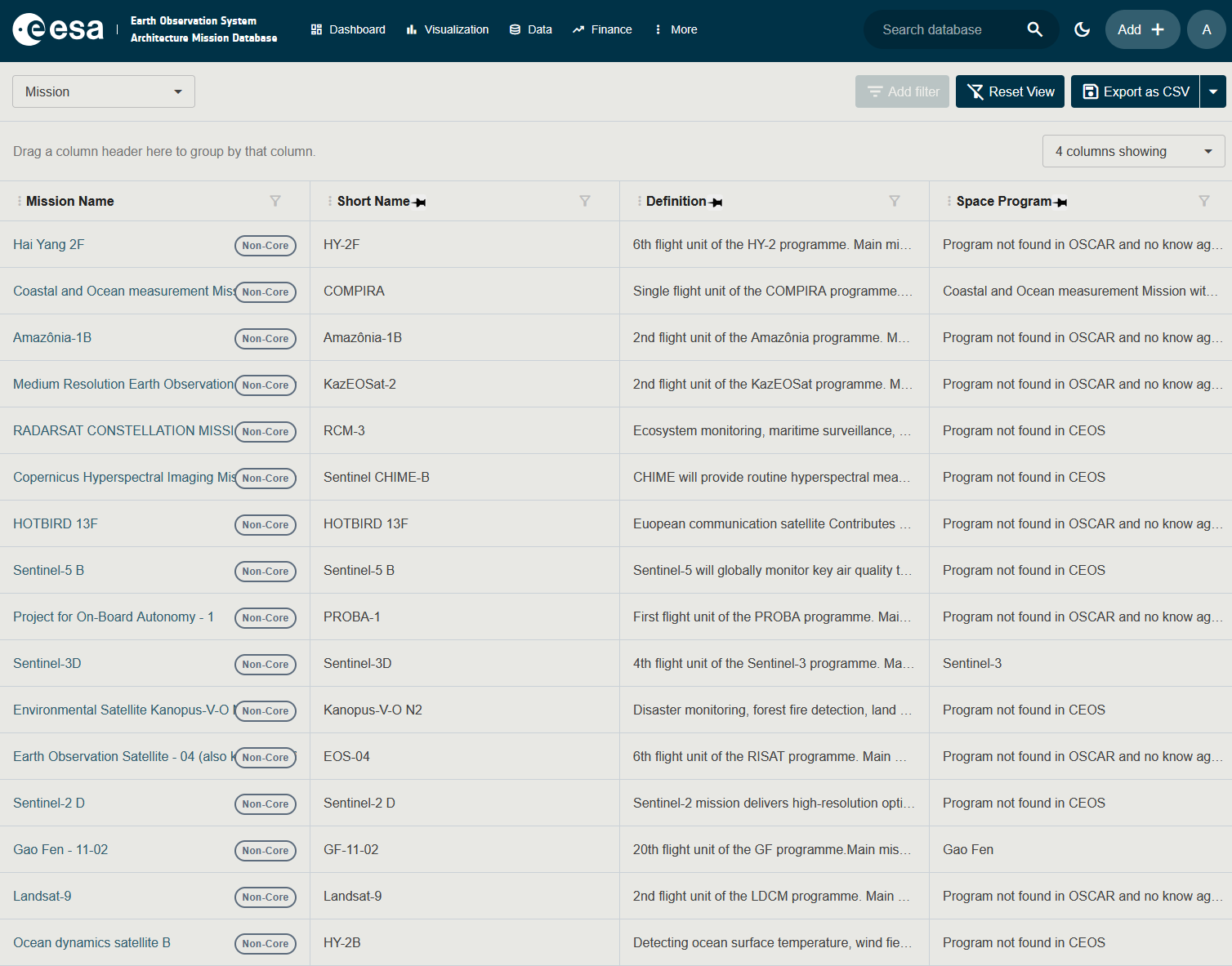
Step 3 — Open a Mission detail page
Click on a mission row (or the expand icon) to open the mission’s detail page. The detail page shows:
- The mission’s primary properties (Name, Short Name, Start/End Date, Space Program, …)
- A Segments related-items table listing all segments of the mission
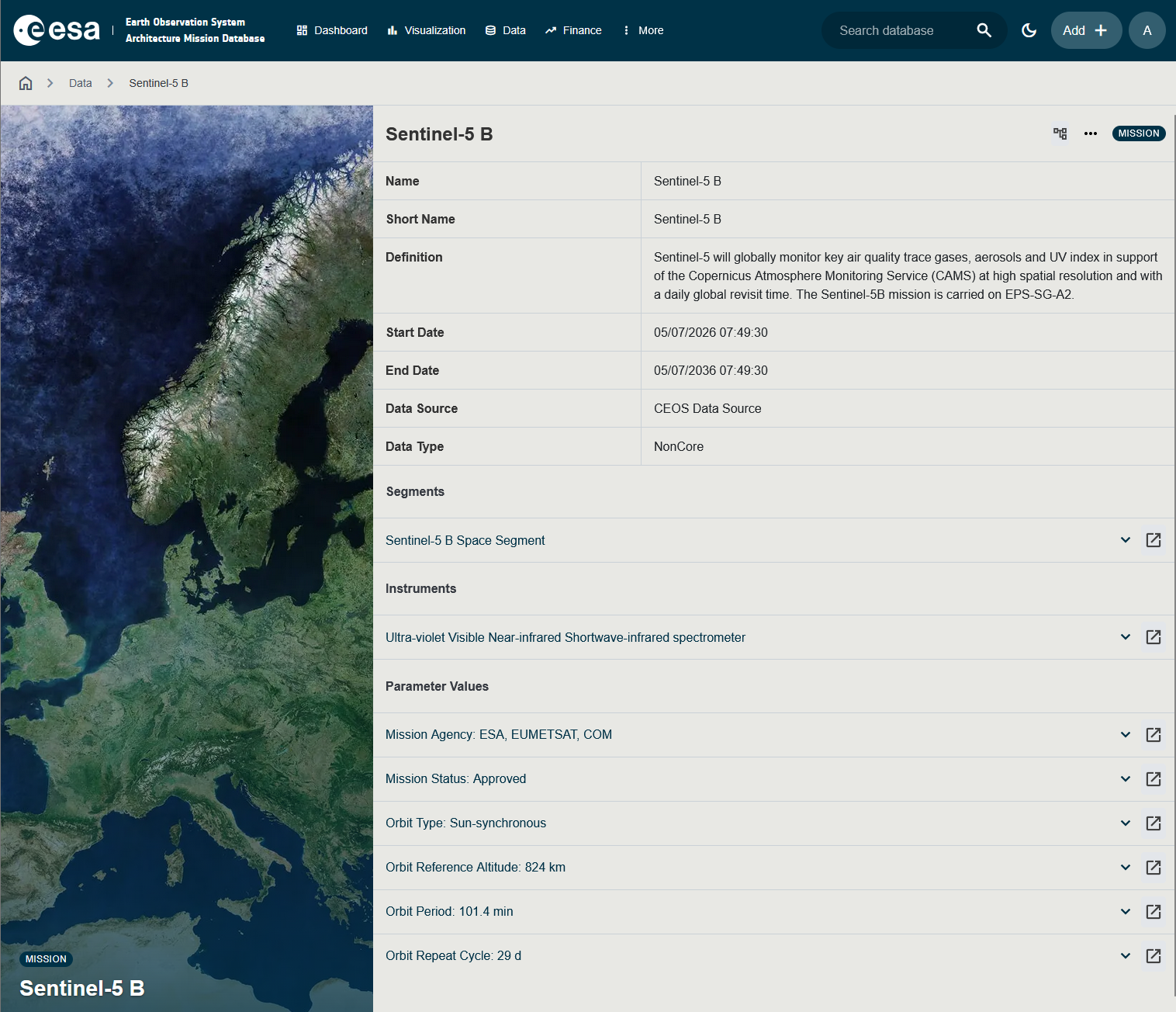
Step 4 — Navigate to a Segment
Click on a segment in the Segments table to open its detail page. The segment detail page shows:
- Segment type (Space / Ground / Launch)
- A Systems related-items table listing all systems in the segment
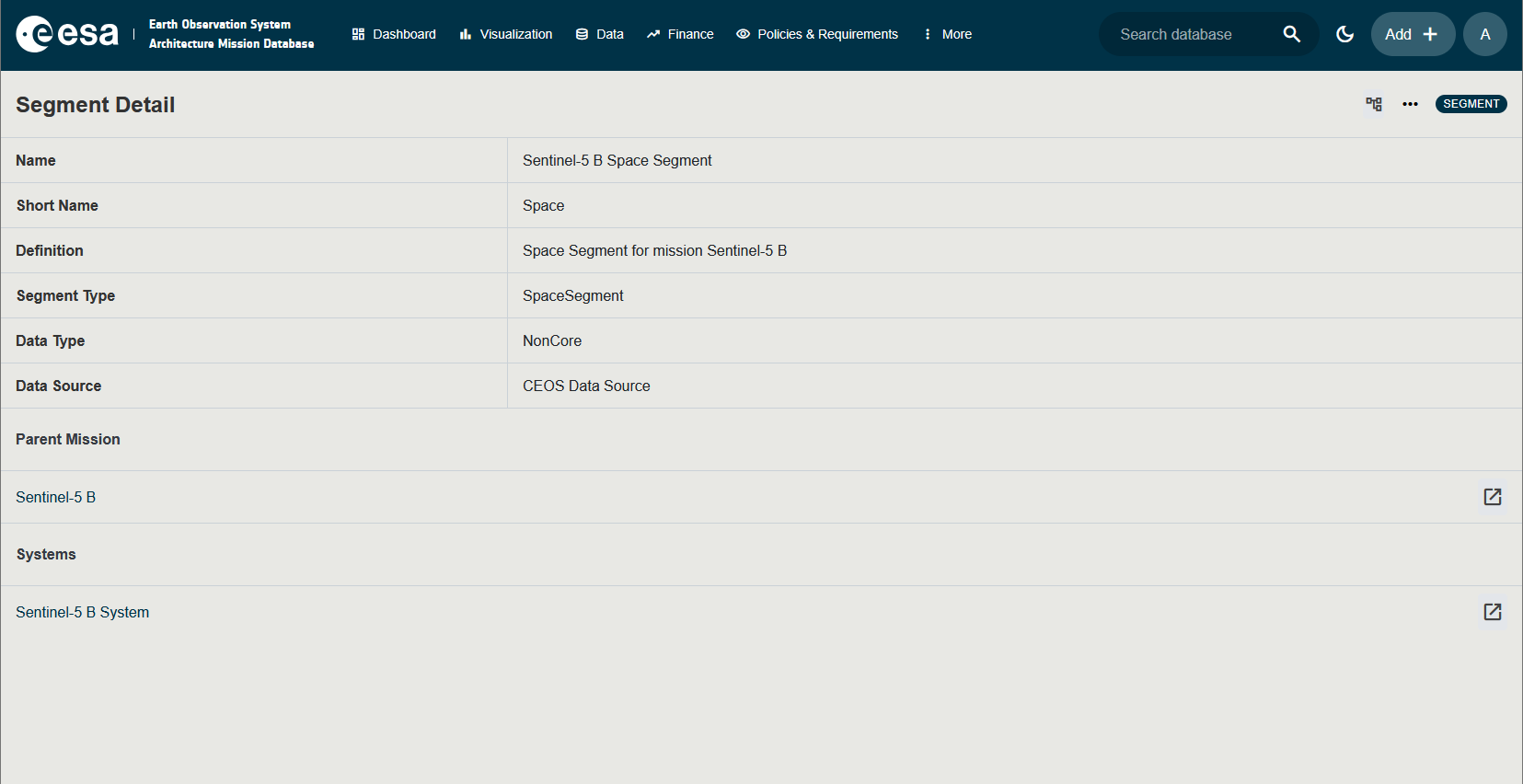
Step 5 — Navigate to a System
Click on a system row to open the System detail page. Here you will find:
- System properties: Name, Short Name, Start Date, End Date, Orbit Parameters
- A Two-Line Element (TLE) sub-section (orbital data) — see Two-Line Element
- A Mission Phases link table (phases in which this system is active)
- An Elements related-items table listing all Payloads and Platforms
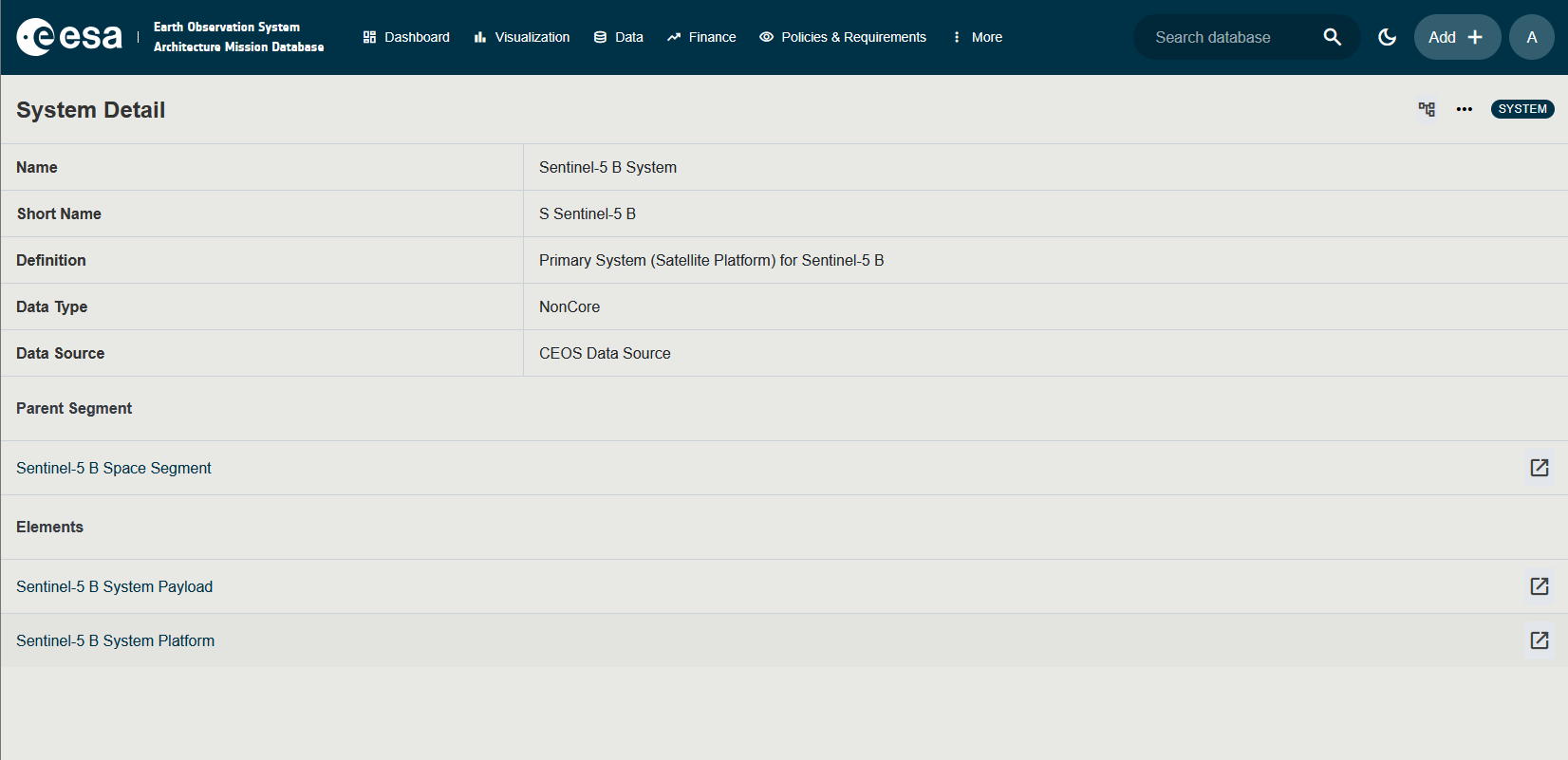
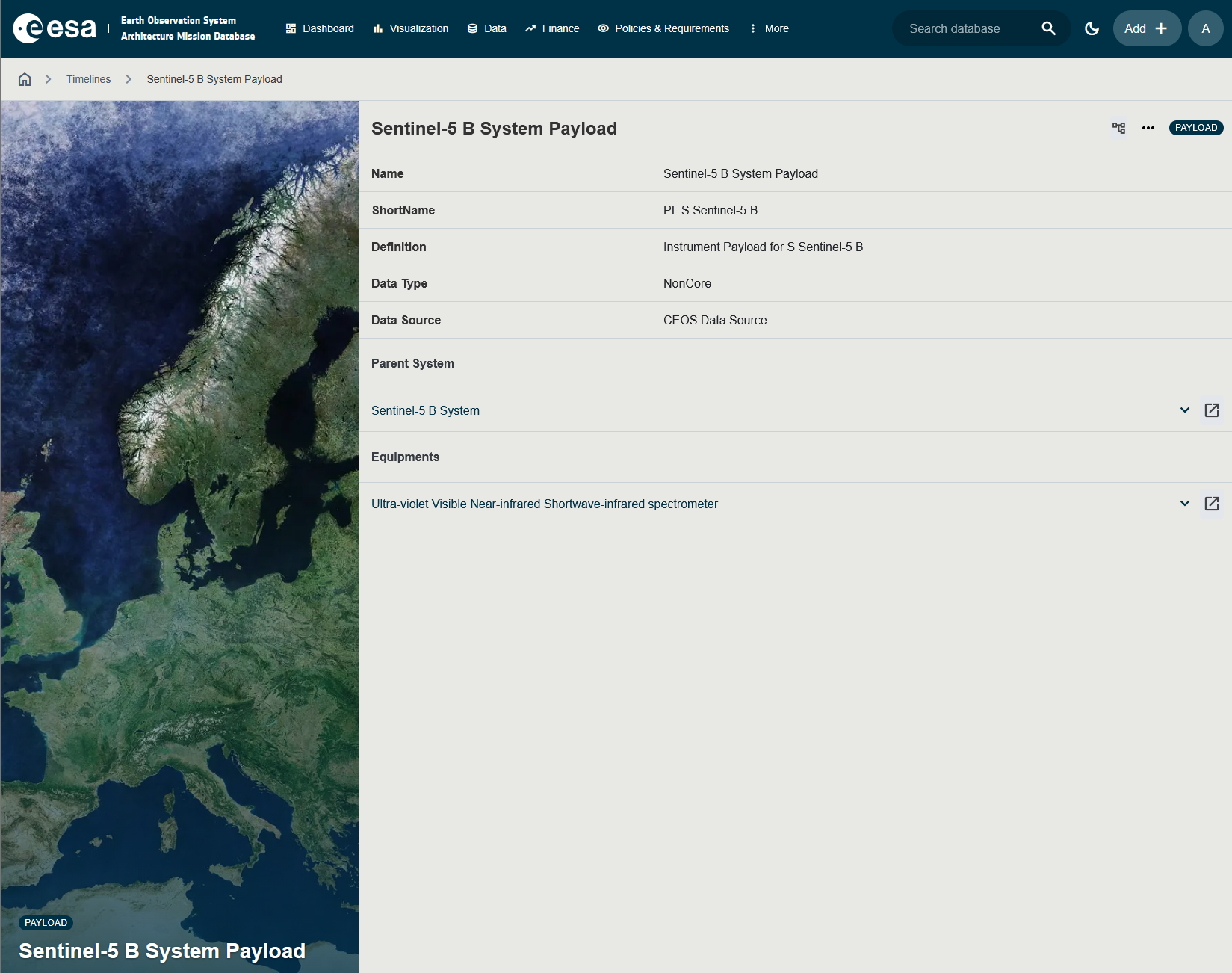
Step 6 — Navigate to a Payload or Platform
Click on a Payload or Platform row in the Elements table. The detail page shows:
- Instrument properties: Name, Short Name, Definition, Data Source
- Spectral Bands related-items table (Payloads only) — see Spectral Bands
- Child Payloads table (for hierarchical instruments)
- Data Products link table (which data products this payload produces, accessible from the DataProduct detail)
Browsing the System Tree in the Financial Application
The Financial application’s Product Breakdown view also presents the cost hierarchy, which mirrors the system tree. See Financial — Product Breakdown for details.
Browsing Systems Directly
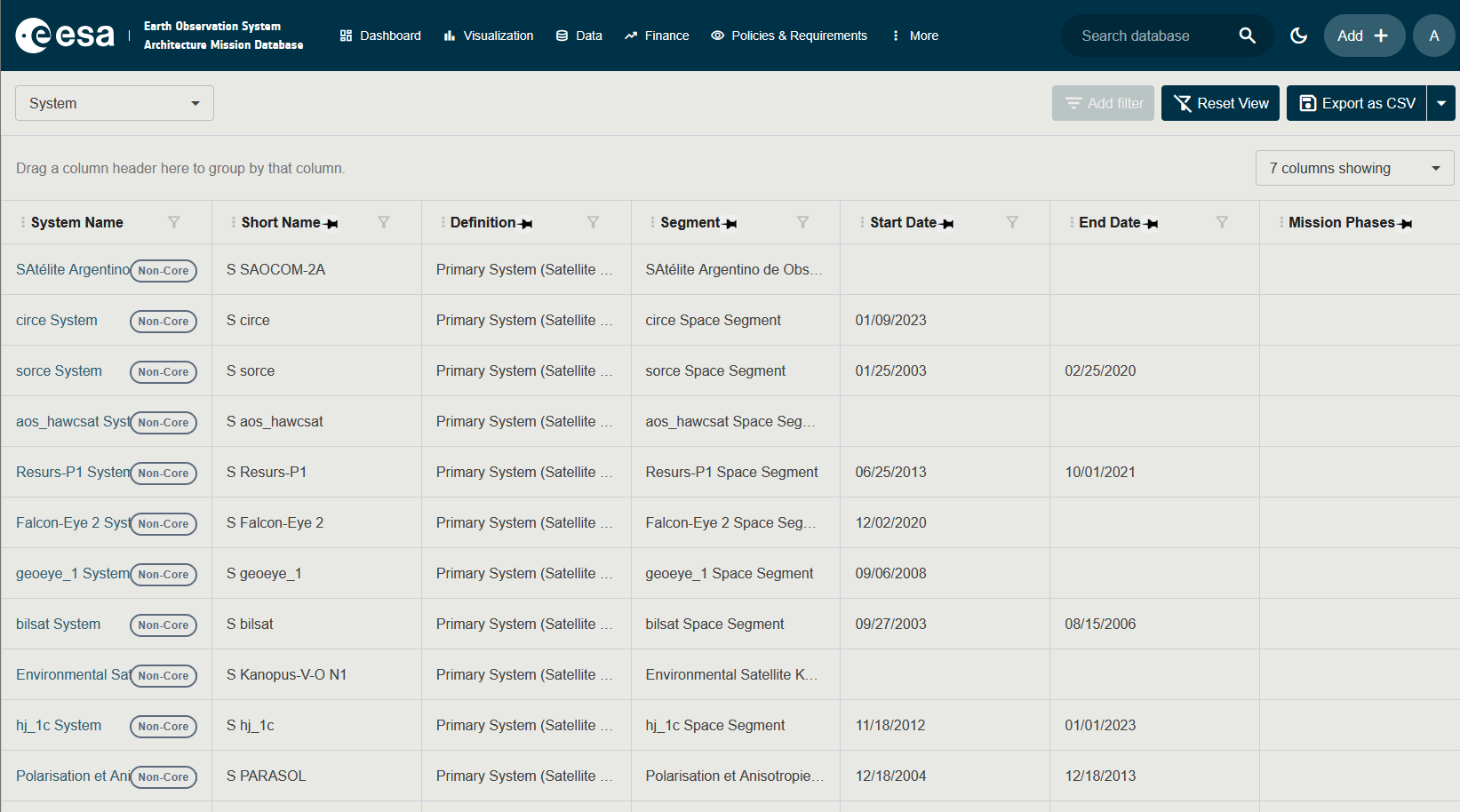
You can also jump directly to the System level:
- Open the Data page.
- In the subject dropdown, select System.
- The grid lists all systems in the database, together with their parent Segment and Mission columns.
- Use the column filter or the search box to find a specific system by name.
Tips
- Use the breadcrumb navigation at the top of each detail page to return to the parent entity without using the browser Back button.
- The Data page can be bookmarked with a subject pre-selected via the URL parameter
?subjectView=System. - Orbit parameters (altitude, inclination) are visible on the System detail page under the Orbit Parameters section.