User Administration (Keycloak)
Table of contents
- Overview
- Make sure you are in eorsa-db realm ! See first section Accessing the Keycloak Admin Console at the top.
- Accessing the Keycloak Admin Console
- Creating a New User
- Setting a Password
- Assigning Roles to a User
- Editing a User
- Disabling / Enabling a User
- Removing a Role from a User
- Deleting a User
- Further Information
Overview
User accounts, credentials, and role assignments are managed through Keycloak, the identity provider used by EORSA-DB. The Keycloak administration console is accessible from the application’s navigation bar for users with the ManageUsers permission.
Only users with the Administrator role can see and access the User Administration menu entry.
Make sure you are in eorsa-db realm ! See first section Accessing the Keycloak Admin Console at the top.
Accessing the Keycloak Admin Console
-
Log in to EORSA-DB with an account that has the Administrator role.
-
Click User Administration in the top navigation bar.
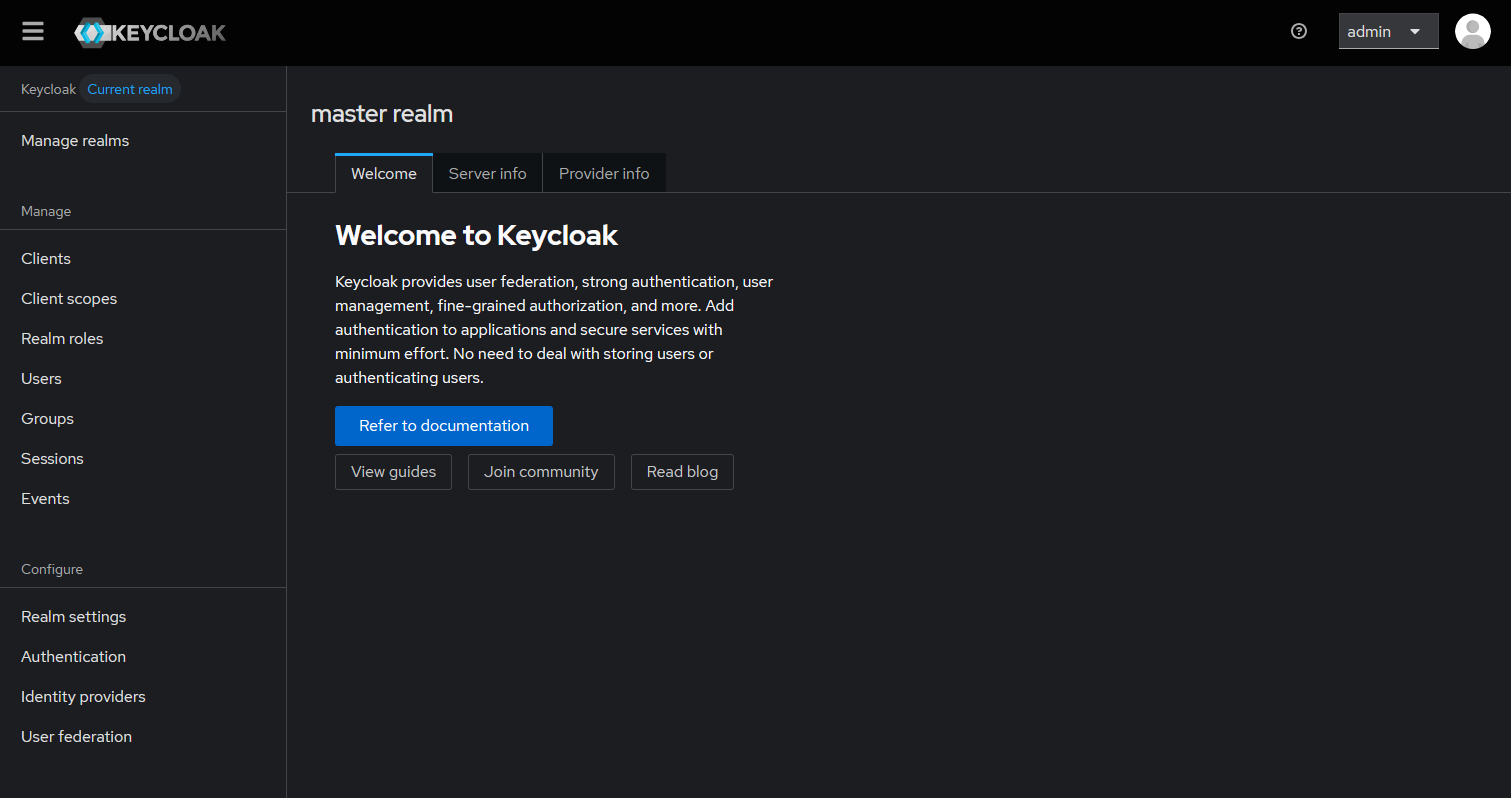
You are redirected to the Keycloak admin console for themqsterrealm (URL:.../authentication/admin/eorsa-db/console/). -
Log in with the
adminaccount (credentials are provided by the system administrator).
-
Click on Manage Realms.
-
In the main panel, click on eorsa-db.
Creating a New User
Make sure you are in eorsa-db realm ! See first section Accessing the Keycloak Admin Console at the top.
-
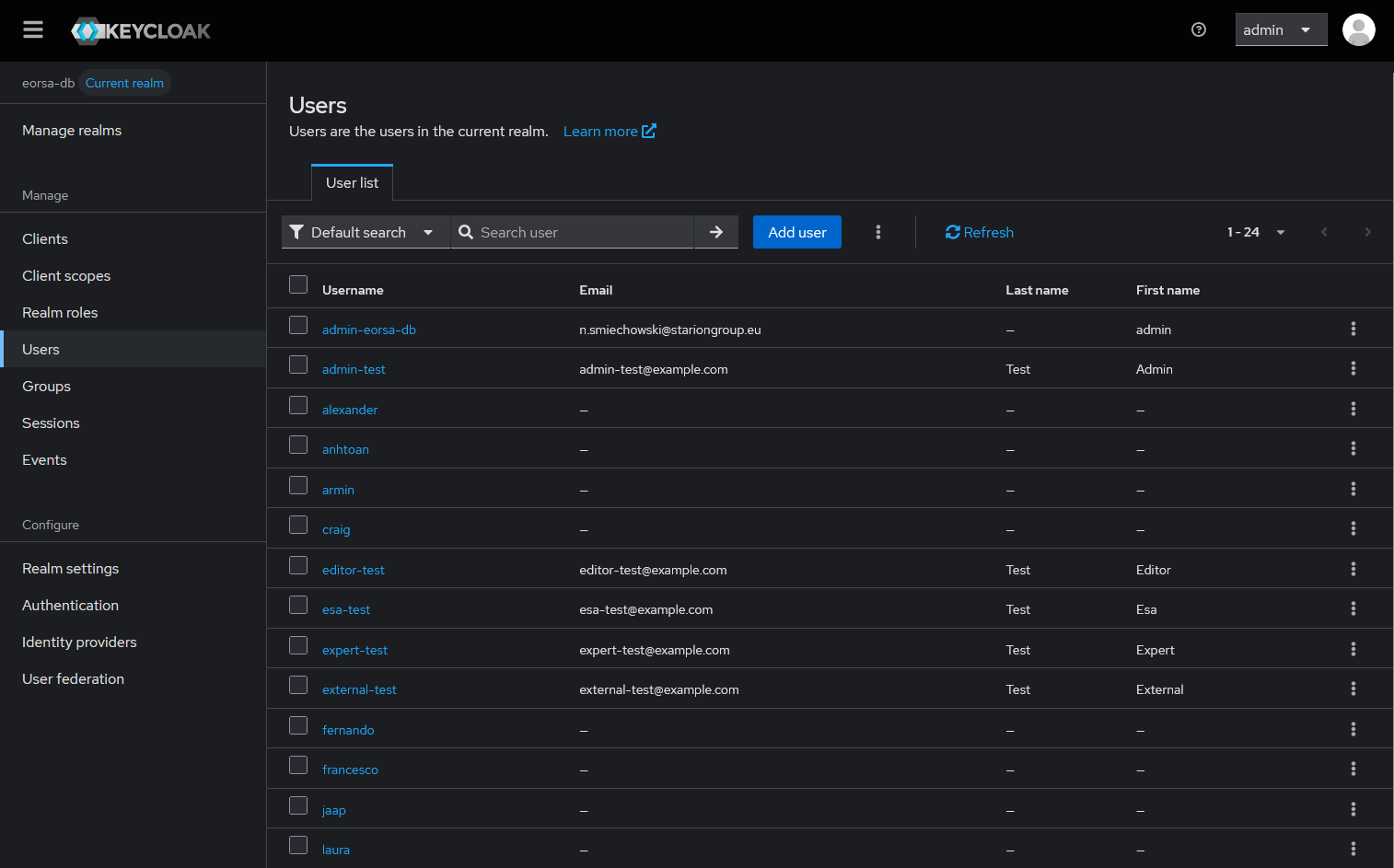
In the left sidebar of the Keycloak console, click Users.
-
Click Add user (top right of the user list).
-
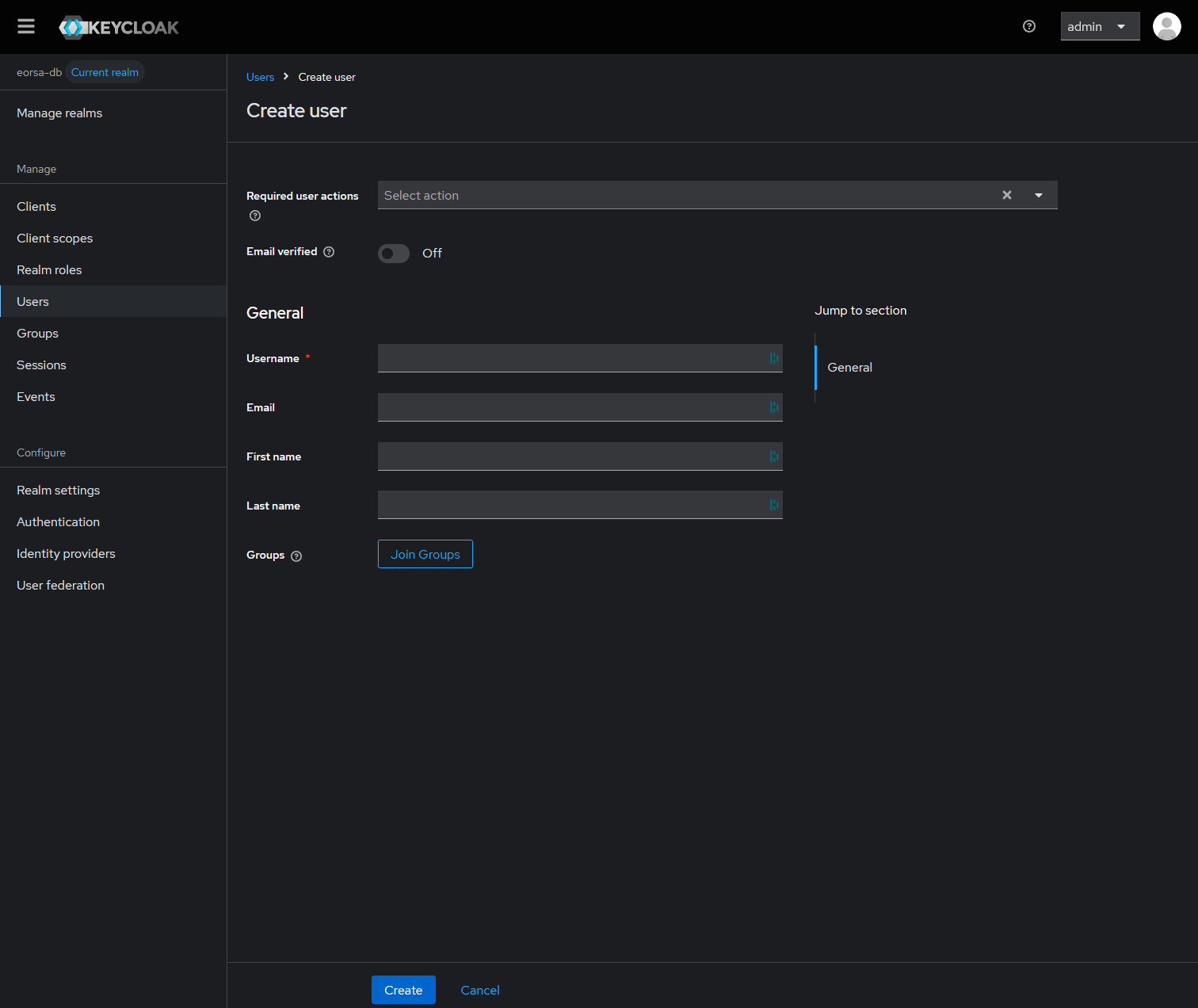
Fill in the user details:
Field Description Username The login name for the user (required). Must be unique within the realm. Email The user’s email address (used for password reset notifications if enabled). First Name / Last Name Display name fields (optional but recommended). Email Verified Set to On if the email has been confirmed; otherwise the user may be required to verify it on first login. Enabled Must be On for the user to be able to log in. -
Click Create.
Setting a Password
Make sure you are in eorsa-db realm ! See first section Accessing the Keycloak Admin Console at the top.
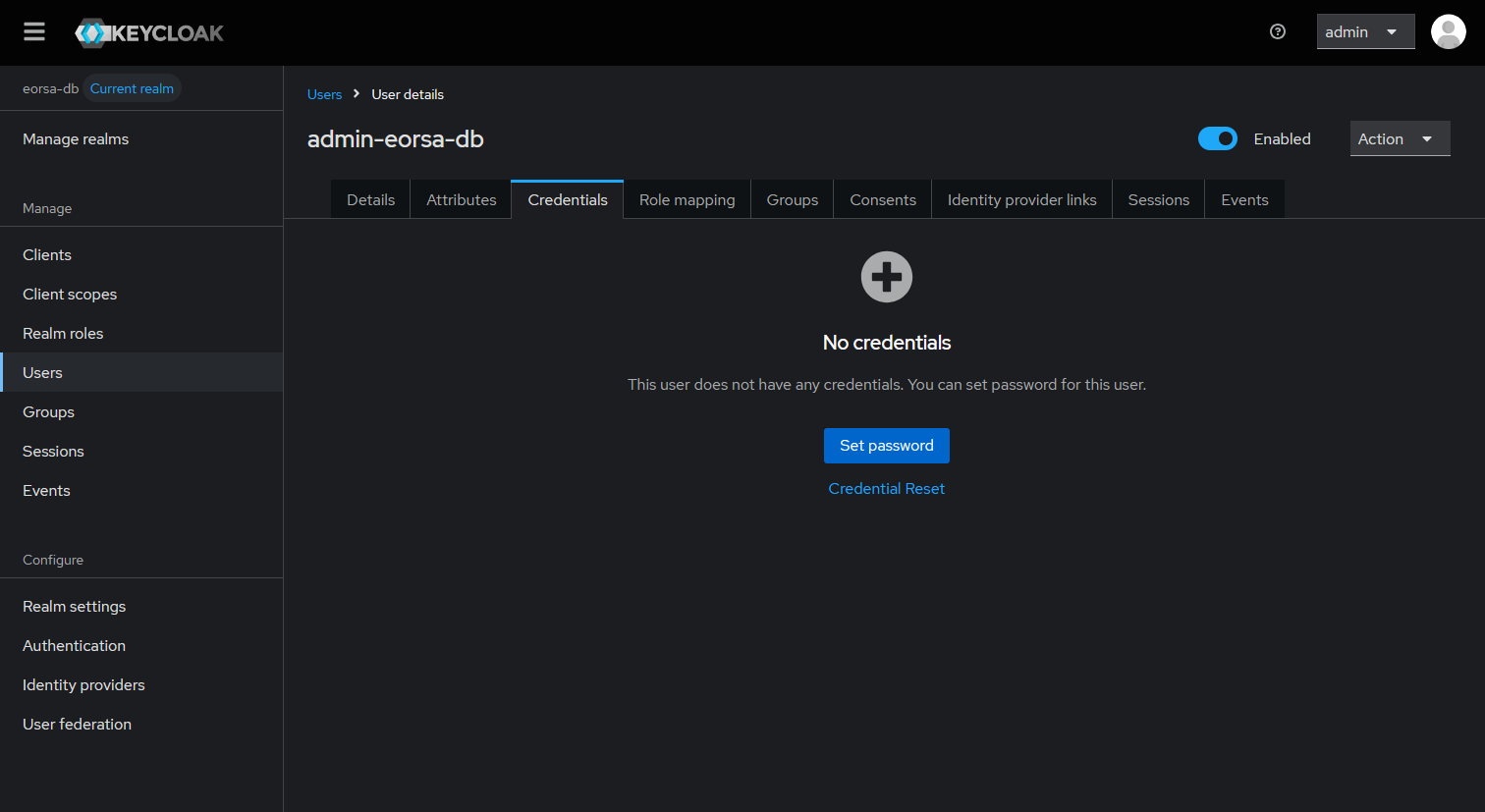
After creating the user, set an initial password so the user can log in:
-
Click the Credentials tab on the user’s detail page.
-
Click Set password.
-
Enter the password in the Password and Password confirmation fields.
-
Set Temporary to On to force the user to change their password on first login, or Off to set a permanent password.
-
Click Save.
Assigning Roles to a User
Make sure you are in eorsa-db realm ! See first section Accessing the Keycloak Admin Console at the top.
Roles control what pages and data a user can access in EORSA-DB. See Roles and Permissions for the full list of available roles and their effects.
-
On the user’s detail page, click the Role mapping tab.
-
Click Assign role.
-
In the search box, type the name of the role you want to assign (e.g.
EditorUser,ESAUser,Administrator). -
Select the checkbox next to the role and click Assign.
-
The role now appears under Assigned roles for this user. Changes take effect on the user’s next login.
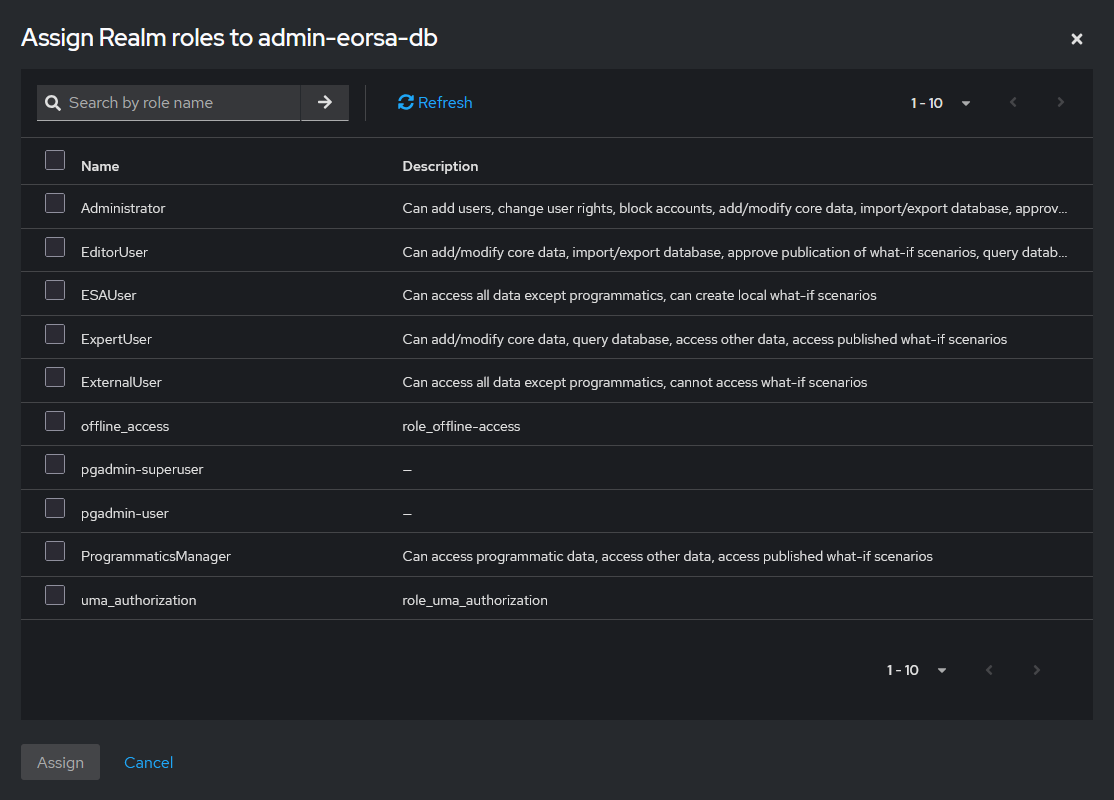
A user can hold multiple roles simultaneously. The effective permissions are the union of all permissions from all assigned roles.
Available Application Roles
| Role | Typical use case |
|---|---|
| Administrator | System administrators who manage users and all data. |
| EditorUser | Content editors who maintain and publish reference data and import/export the database. |
| ExpertUser | Subject matter experts who create and edit reference data but do not need import/export access. |
| ProgrammaticsManager | Users who need access to financial / programmatic data. |
| ESAUser | Internal ESA staff who need read access plus the ability to create private what-if scenarios. |
| ExternalUser | External collaborators who need read-only access without any what-if capabilities. |
PG Admin Roles
In addition to application roles, Keycloak also carries roles for PG Admin access:
| Role | Effect |
|---|---|
pgadmin-superuser | Grants full administrative access in PG Admin. |
pgadmin-user | Grants standard user access in PG Admin (pre-configured read-only server connection). |
Editing a User
Make sure you are in eorsa-db realm ! See first section Accessing the Keycloak Admin Console at the top.
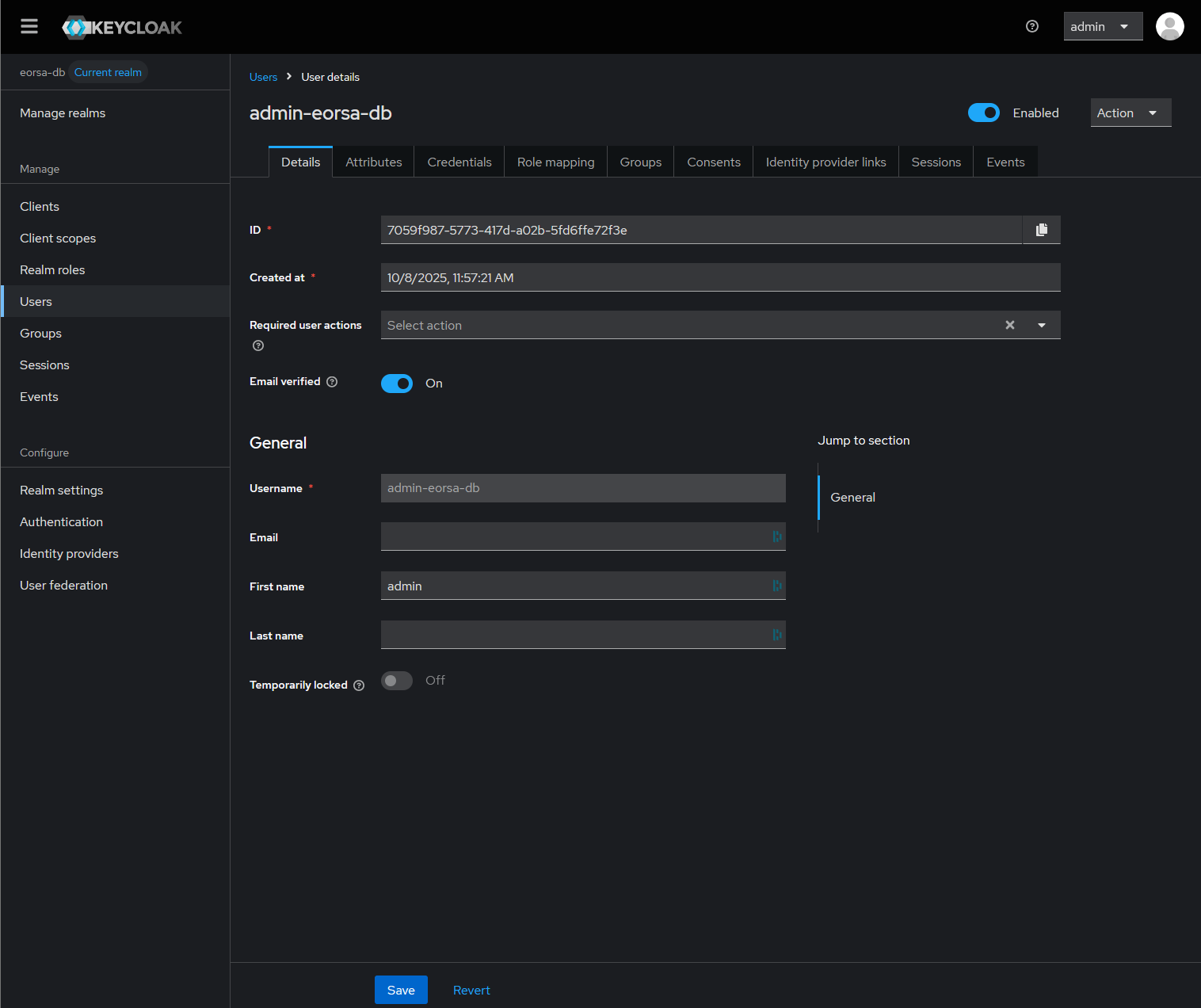
- In the left sidebar, click Users.
- Find the user using the search box.
- Click the user’s Username to open their detail page.
- Modify any field on the Details tab and click Save.
Disabling / Enabling a User
To prevent a user from logging in without deleting their account:
- Open the user’s detail page (see Editing a User above).
- On the Details tab, toggle Enabled to Off.
- Click Save.
The user will receive an “Account disabled” message on their next login attempt. Toggle Enabled back to On to restore access.
Removing a Role from a User
- Open the user’s detail page and click the Role mapping tab.
- In the Assigned roles list, tick the checkbox next to the role you want to remove.
- Click Unassign.
Role removal takes effect on the user’s next login.
Deleting a User
Deleting a user is irreversible. Any content owned by that user (e.g. local what-if scenarios) will become orphaned.
- In the Users list, tick the checkbox next to the user’s row.
- Click Delete user.
- Confirm the deletion in the dialog.
Alternatively, from the user’s detail page, click the Action dropdown (top right) and select Delete.

Further Information
For advanced Keycloak administration tasks (configuring identity providers, client settings, realm events, etc.) refer to the official Keycloak Server Administration Guide.