Worked Example — From Parameter Type to Benchmark
Table of contents
Goal
This page walks through a full, realistic flow connecting the four moving parts that, in isolation, are described elsewhere in the manual:
- A Parameter Type declares the schema of a measurement.
- A Parameter Value of that type is attached to a Mission’s instrument.
- A Parametric Constraint on an ECV Requirement reads that value.
- The Benchmarking tool evaluates the constraint and shows whether the requirement is covered.
We will use a single thread end-to-end so you can see how a value typed on one page affects a result on another.
Scenario. An ECV Requirement for Sea Surface Temperature says the contributing instrument must offer a spatial resolution of 1 km or better. We will declare the parameter type, attach a value to a sample mission’s instrument, write the constraint, and read the benchmarking result.
Prerequisites
- An account with permissions to view and edit Core (or at minimum Local Fictional) data — see Data Types and Permissions.
- An account with
ManageUsersto create the Parameter Type, or a Parameter Type called Spatial Resolution already exists in the system. - A test Mission with at least one Payload (Instrument). If you do not have one, create a Local Fictional mission via the + button on the Data page.
Step 1 — Define the Parameter Type
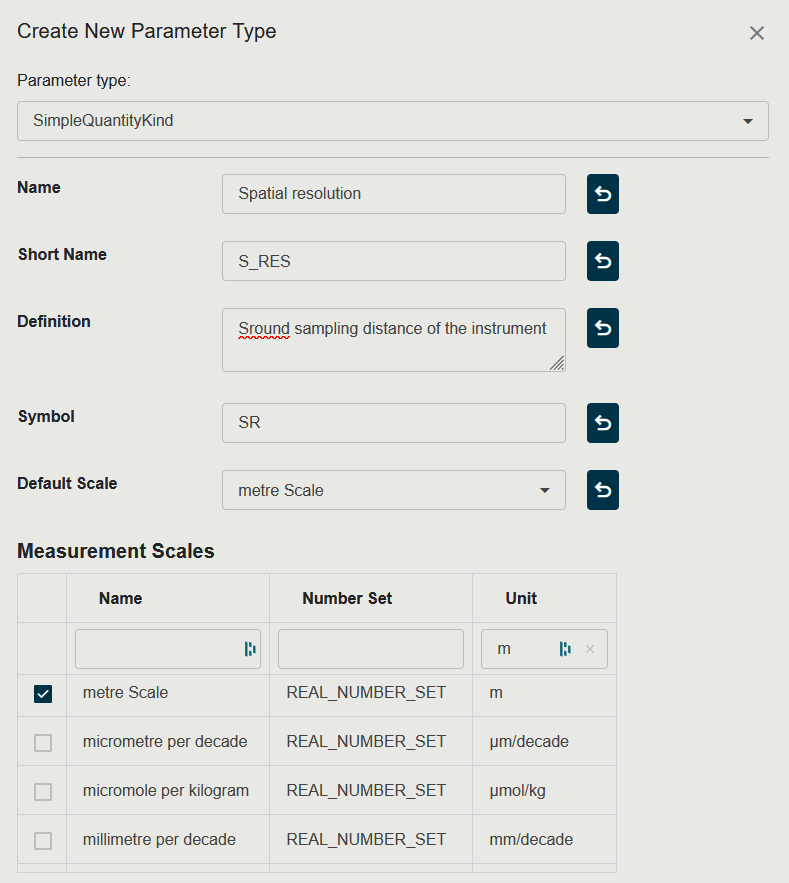
The Parameter Type is the schema. We need a numerical value with a length unit, so the right kind is a Simple Quantity Kind.
-
Open Administration → Parameter Types. (Requires
ManageUsers— otherwise skip to Step 2 if the type already exists.) -
Click the floating + button.
-
In the dropdown, choose Simple Quantity Kind.
- Fill in:
- Name:
Spatial Resolution - Short Name:
SpatialRes - Definition: Ground sampling distance of the instrument at nadir.
- Default unit:
m
- Name:
- Click Save.
The type is now selectable everywhere a Parameter Value can be added. Full reference for each kind of Parameter Type is in Parameter Types.
Step 2 — Attach a Parameter Value to the Instrument
The schema is in place; now we attach an actual measurement to a real instrument.
-
From the topbar, open the Data page and navigate to your test Mission.
-
Click into one of its Payloads (Instruments) — for example MyTestRadiometer.
-
Click Edit on the detail page.
-
Open the Parameters tab.
-
Click + Add Parameter Value.
-
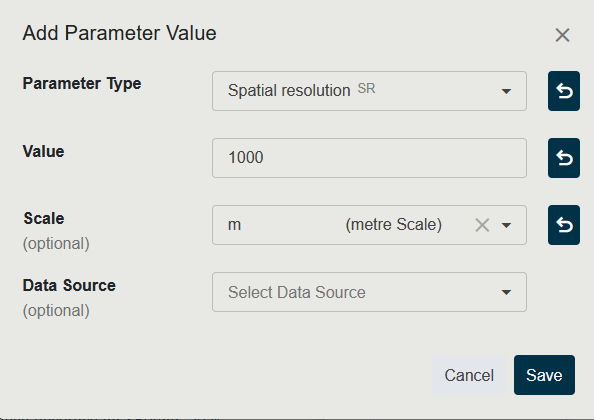
Parameter Type: select
Spatial Resolution. -
Value: enter
1000. -
Unit: confirm
m(you could also enter0.001km — the comparison performed in Step 4 normalises units). -
Click Save.
You have just created a Parameter Value of type Spatial Resolution on MyTestRadiometer with value 1000 m.
For all the input variations (compound types, array dimensions, enumerations, …) and for editing or deleting values later, see Parameter Values.
Step 3 — Write the Parametric Constraint
Now we make a Requirement that reads the value.
-
Go to Policies & Requirements in the topbar.
- Either select an existing Sea Surface Temperature ECV Requirement, or create a new ECV Requirement under an existing Requirement Group:
- Right-click a Requirement Group → Add ECV Requirement.
- Name: SST — Spatial resolution.
- Link it to the Sea Surface Temperature ECV.
-
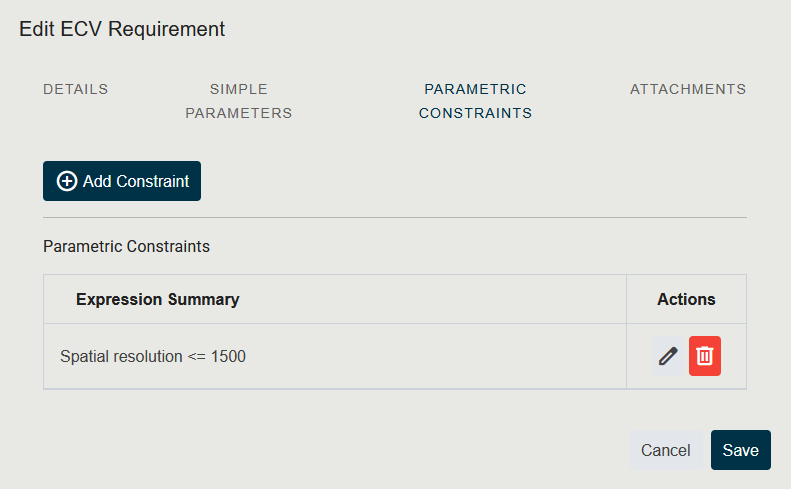
Open the ECV Requirement’s detail page and switch to the Parametric Constraints tab.
-
Click Add constraint to open the Boolean Expression Editor.
- Build a single relational expression:
- Parameter Type:
Spatial Resolution - Operator:
≤ - Value:
1000m
- Parameter Type:
- Click Save.
The constraint now reads “the Spatial Resolution of any contributing instrument must be ≤ 1000 m”. For the full grammar of the editor — AND / OR, nested groups, in / not in, per-component checks for compound types — see Parametric Constraints.
Step 4 — Run the Benchmark
Time to verify that the value from Step 2 satisfies the constraint from Step 3.
-
Open the Benchmarking application from the topbar.
-
In the left panel, tick your test Mission (or expand it and tick MyTestRadiometer directly).
-
Switch the mode toggle to Instrument mode so the Spatial Resolution is checked at instrument level.
-
In the right panel, expand Sea Surface Temperature and tick SST — Spatial resolution.
-
Click Start benchmark.
The results table shows one row: MyTestRadiometer × SST — Spatial resolution. Because 1000 m ≤ 1000 m, the result is Covered (green).
Step 5 — Try the Failure and Partial Cases
To see the other two outcomes, repeat the loop with small variations.
| Try this … | … and observe |
|---|---|
In Step 2, change the Spatial Resolution to 2000 m and rerun the benchmark. | Result becomes Not covered (red) — the constraint ≤ 1000 m is violated. |
| In Step 2, remove the Spatial Resolution Parameter Value entirely. | Result becomes Not covered with the reason “required parameter type was not found” — the constraint cannot be evaluated. |
In Step 3, add a second relational expression Swath ≥ 200 km joined by AND, but leave the Payload without a Swath Parameter Value. | Result becomes Partially covered (orange) — one constraint is satisfied, the other is not. |
In Step 4, switch the mode to Combined and add a Spatial Resolution value of 5000 m on the parent Mission itself. | Two rows: instrument-level Covered, mission-level Not covered. The combined view shows at which level coverage holds. |
A full description of the three outcomes (Covered, Partially covered, Not covered) and the Combined mode semantics is in Benchmarking.
Recap
┌───────────────────────┐   declares schema    ┌───────────────────────┐
│  Parameter Type       │ ───────────────────▶ │  Parameter Value      │
│  (Spatial Resolution) │                      │  (1000 m on Payload)  │
└───────────────────────┘                      └──────────┬────────────┘
                                                          │ read by
                                                          ▼
┌───────────────────────┐   evaluated by       ┌───────────────────────┐
│  Parametric Constraint│ ◀──────────────────▶ │  Benchmarking         │
│  (≤ 1000 m)           │                      │  (Covered / Partial / │
└───────────────────────┘                      │   Not covered)        │
                                               └───────────────────────┘
| Step | Page | Required permission |
|---|---|---|
| 1 — Create Parameter Type | Administration → Parameter Types | ManageUsers |
| 2 — Add Parameter Value | Data → entity detail → Parameters tab | AddCoreData (or CreateLocalWhatIfScenarios for fictional data) |
| 3 — Write Parametric Constraint | Policies & Requirements | AccessOtherDataButProgrammatics + edit rights on the requirement’s Data Type |
| 4 — Run Benchmark | Benchmarking | AccessOtherDataButProgrammatics |