Data Application
Table of contents
Overview
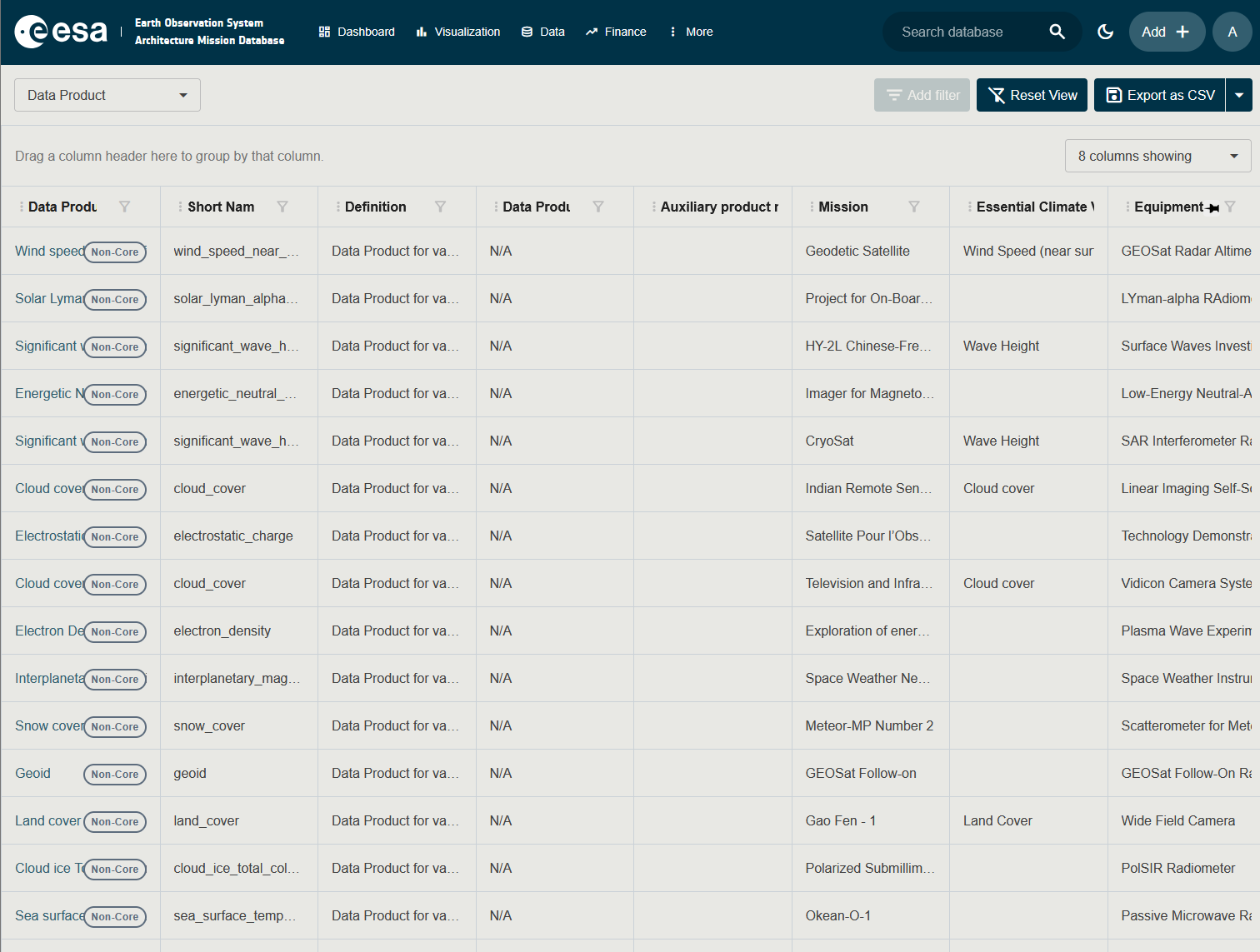
The Data application provides a tabular browsing interface for all entities in EORSA-DB. It is accessible from the Data menu item in the topbar.
Selecting a Subject
Use the subject dropdown in the top-left to select which entity type to browse:
| Subject | Description |
|---|---|
| Mission | Browse all missions with instruments, data products, dates, and parameters. |
| Payload (Instrument) | Browse all instruments / sensors with associated missions and specifications. |
| Data Product | Browse data products with processing levels, missions and ECVs. |
| ECV | Browse Essential Climate Variables with linked missions and data products. |
| Space Program | Browse programmes with associated missions and projects. |
| Project | Browse projects with phases and associated missions. |
| System | Browse systems within segments. |
The selected subject is reflected in the URL (?subjectView=Mission) so the page can be bookmarked or shared. Categories, Parameter Types and Organisations are managed in the Administration application; Equipment, Platforms, Segments and Mission Phases are accessed via the parent entity’s detail page.
Toolbar
| Control | Description |
|---|---|
| Subject dropdown | Selects the entity type to browse. |
| Add filter | Opens the Filter Panel for advanced (property/operator/value) filters combined with AND / OR. Active filters appear as removable badges in the toolbar. |
| Reset View | Clears all filters, sort orders, pinned columns and grouping. |
| Export as … | Exports the current view. The main button exports in the first available format (CSV); the split-button menu lists the other formats: Excel (XLSX), SVG, PNG and JPEG. |
| + (floating) | Opens a side panel to create a new entity of the selected subject. Visible only to users with the AddCoreData permission. |
Table Features
The Data page uses the same dynamic data grid as the Timelines table view and supports:
- Column selection via the Select columns dropdown
- Sorting by clicking column headers
- Filtering via the funnel icon on each column
- Column freezing (pinning) for horizontal scrolling
- Grouping by dragging columns to the grouping area
- Export to CSV, Excel (XLSX), SVG, PNG or JPEG
- Persistence of column order, widths, filters and pinned columns in browser session storage (preserved while the browser tab is open)
See General Functionalities for details on common table features.
Navigating to Details
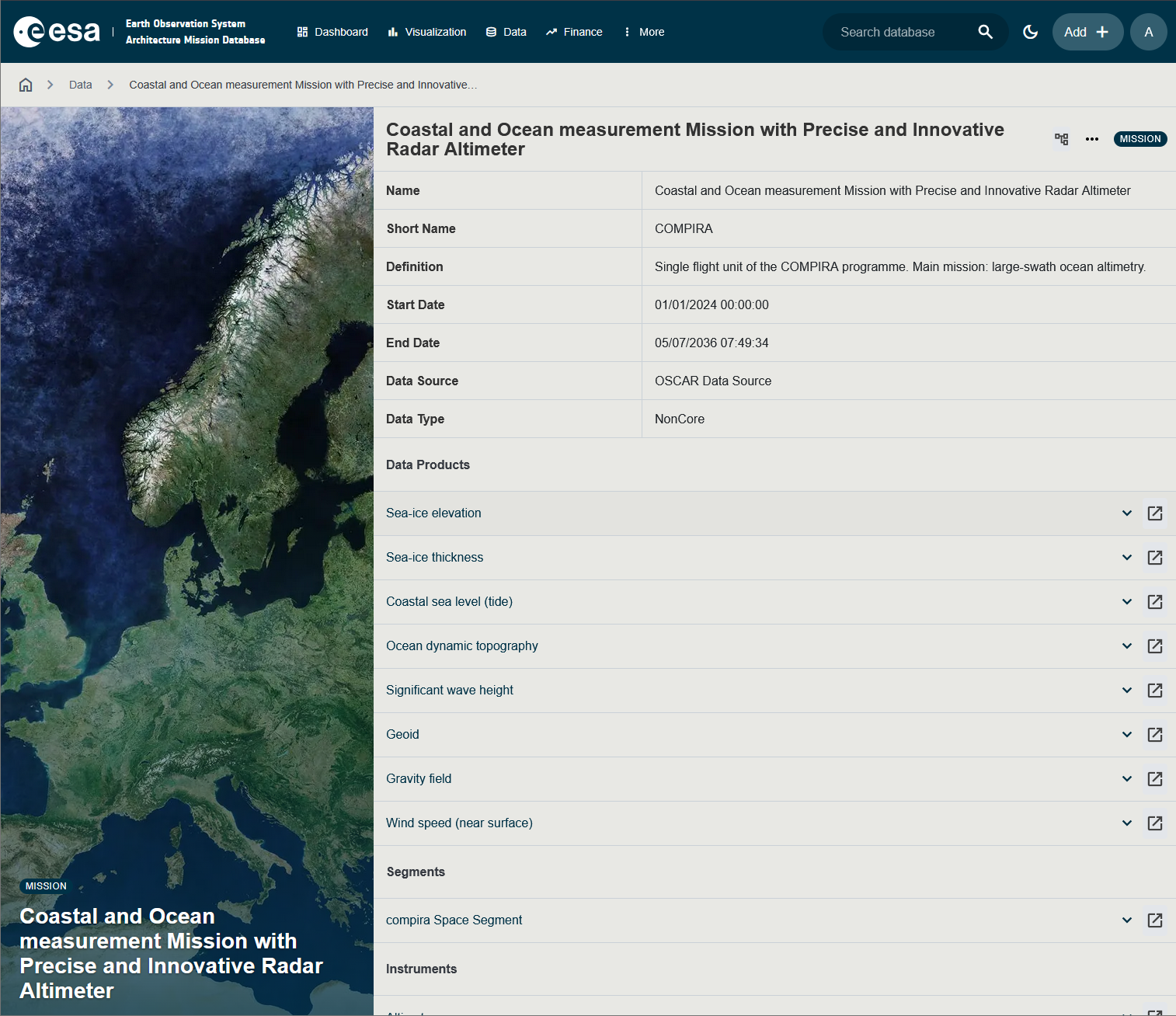
Click on any entity name in the table to open its detail page, which shows:
- Primary properties (Name, Short Name, Definition, Dates, Data Type)
- Related entities in clickable tables
- Attachments and illustrative images
- Parameter values
From the detail page, you can Edit, Delete, Duplicate, or Export the entity.
Some entity types add extra panels to this layout, tailored to the data they hold:
- A System detail page shows a dedicated Orbit Parameters panel where altitude, inclination, period and other orbital values can be viewed and edited. See Two-Line Element (TLE) for the related TLE editor.
- A Payload detail page shows a Spectral Bands panel for adding and editing the frequency / wavelength ranges the instrument observes. See Spectral Bands.
- An ECV detail page shows extra panels for linked Data Products and ECV Requirements.
Sub-pages
| Page | Description |
|---|---|
| Navigating the System Tree | Step-by-step guide to browsing the mission hierarchy from Space Program down to Payload. |
| Two-Line Element (TLE) | How to view, modify, and import TLE orbital data for a System. |
| Spectral Bands | How to add and manage spectral band definitions on a Payload. |