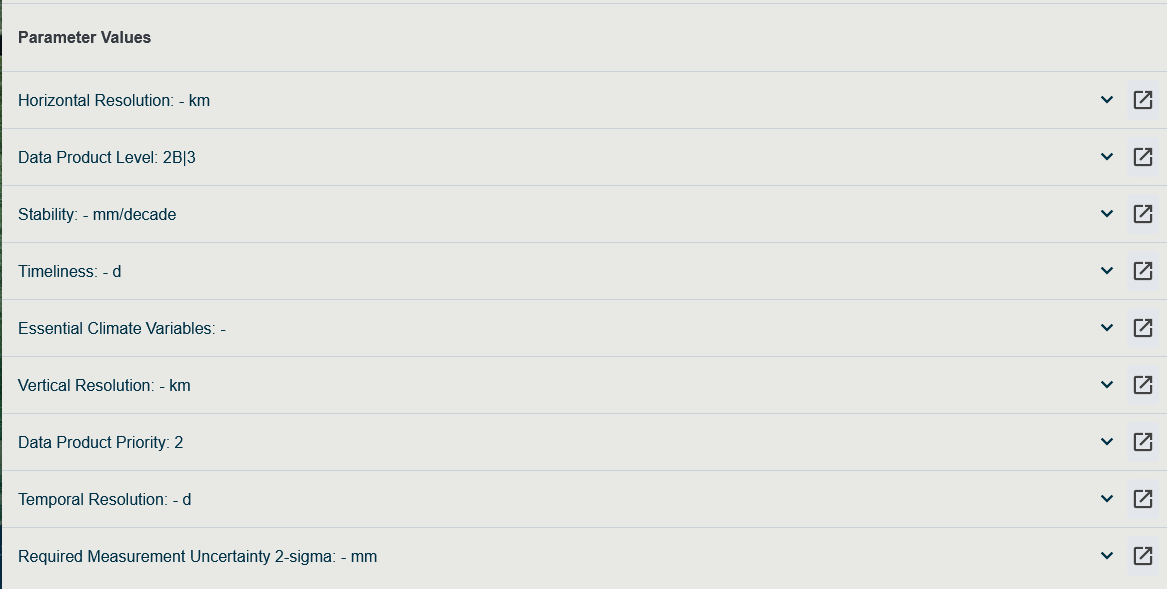
Parameter Values
Table of contents
What is a Parameter Value?
A Parameter Value is a concrete piece of data attached to an entity (a Mission, Payload, Data Product, Equipment, Requirement, …). Each Parameter Value is typed by a Parameter Type, which determines its allowed format — boolean, date, text, enumeration, quantity with a unit, compound, or array.
Parameter Values are the data that the Benchmarking tool reads when it evaluates the Parametric Constraints declared on Requirements. Without Parameter Values on the missions and instruments you select, a benchmark run has nothing to compare against and every requirement comes back as Not covered.
| Concept | Lives on | Plays the role of |
|---|---|---|
| Parameter Type | Defined once in Administration → Parameter Types | The schema (format, components, units) |
| Parameter Value | Attached to a domain entity (Mission, Payload, …) | The actual data point |
| Parametric Constraint | Attached to a Requirement | The rule applied to Parameter Values during benchmarking |
Where Parameter Values Appear
Parameter Values are parameterizable on every entity that inherits from ISimpleParameterizableThing — see the Inheritance Model in the Data Model page. In practice this includes:
- Space Programme, Project, Mission, Mission Phase, Project Phase
- Segment, System, Payload (Instrument), Platform, Equipment
- Data Product, Requirement, Organisation
On each of these entities the Parameter Values appear in:
- The Parameters tab of the Edit panel.
- The Parameter Values section of the read-only detail page.
- The Select columns dropdown in Timelines, Heatmap, Table and Data views, where any Parameter Type can be promoted to a column.
Add a Parameter Value
-
Navigate to the entity’s detail page (e.g. open a Mission from the Data page).
-
Click Edit, then open the Parameters tab.
-
Click + Add Parameter Value.
-
Pick a Parameter Type from the dropdown. The dropdown only lists Parameter Types that already exist in the system — if the type you need is missing, ask an administrator to create it via Administration → Parameter Types.
-
Enter the value. The input control adapts to the selected Parameter Type:
Parameter Type Input Boolean Toggle / checkbox Date, Date Time, Time of Day Date / time picker Text Free-text field Enumeration Single- or multi-select dropdown of allowed values Simple / Specialized Quantity Kind Numeric value + unit selector Derived Quantity Kind Read-only — value is computed Compound One field per component (each typed by its own Parameter Type) Array A grid sized by the array’s declared dimensions, one cell per element -
(Optional) Set the Data Source if the value comes from an external reference. The Data Type of the parent entity is inherited by default.
-
Click Save.
Edit or Delete a Parameter Value
-
Open the entity’s detail page and click Edit.
-
Open the Parameters tab.
-
To edit, click the row and modify the value, then Save.
-
To delete, click the trash icon on the row, confirm the dialog, then Save the parent entity.
The Parameter Type itself is fixed once a value has been created. To change the type you must delete the value and re-add it under the new type.
Bulk-Editing Parameter Values
Parameter Values are included in the Excel exports produced from the Data and Timelines pages. To bulk-edit:
-
Use Select columns to add the relevant Parameter Type columns to the view.
-
Apply filters to narrow the rows.
for 3. Click Export As Excel to download the current view with the selected Parameter Value columns.
Use the downloaded file for offline review and analysis. To modify Parameter Values, open each entity’s detail page and edit them directly in the Parameters tab (see Edit an Element).
Visibility, Permissions and Data Types
Parameter Values inherit the Data Type of their parent entity (Core, Non-Core, Fictional, Local Fictional). The same visibility rules described in Data Types and Permissions apply: you can only see and edit Parameter Values on entities whose Data Type your role grants access to.
Related Pages
- Parameter Types — administer the available Parameter Types.
- Parametric Constraints — declare rules that read Parameter Values.
- Benchmarking — evaluate constraints against Parameter Values across selected Missions.
- Worked Example: From Parameter Type to Benchmark — end-to-end walkthrough.
- Data Model — where Parameter Values sit in the inheritance model.